Back Office: Email Receipt Template Settings
Configure what you would like
to include on the Email Receipt
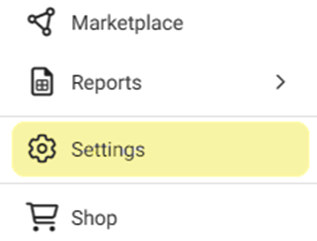
Navigation: In the Back Office, on
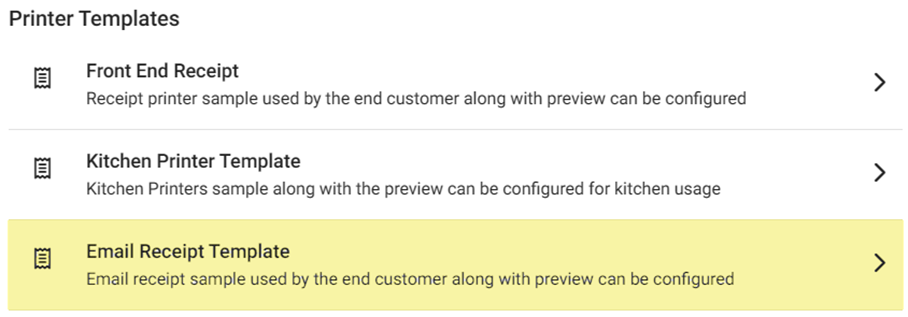
the left-side click Settings. On the Settings page, under Printer Templates select Email Receipt Template.
The
Email Receipt Template page contains customization sections, along with
a Template Preview.
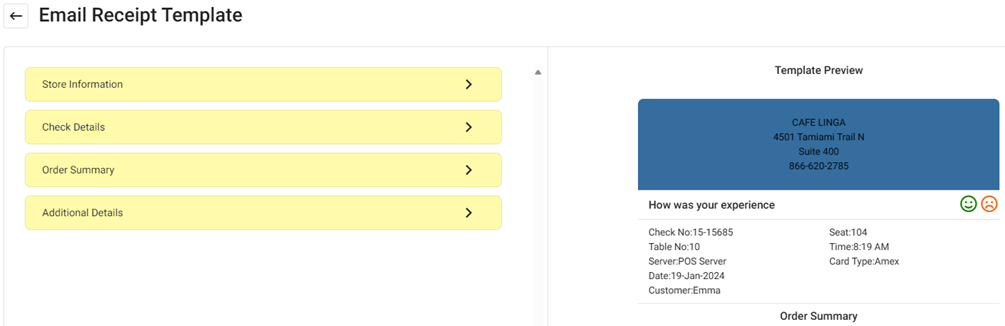
Store Information
- Store Name – If selected, the Store Name will appear on the receipt.
- Address – If selected, the Address will appear on the receipt.
- Email – If selected, the Email Address will appear on the receipt.
- Phone Number – If selected, the Phone Number will appear on the receipt.
- Store Logo – If selected, entering Logo URL Link (such as your logo from your website) is optional.
- Background Color – To update the color, click the smaller square, then select the new base color and slide the circle to adjust the shading.
Check Details
- Check Number – The Check Number (typically XX-XXXX format).
- Table No – The Table Number (as appears in POS).
- Server Name – The Name of the Server assigned to the table.
- Date & Time – The Date and Time the receipt was printed.
- Customer Name – The Name provided by the Customer.
- Seat Number – The Seat Number based on the table (Example: Table 10, Seat 104).
- Service Type – The type of order submitted (Example: QSR [Quick Service Restaurant]).
Order Summary
Information about Menu Items ordered on the ticket:
- Order Summary – Each Item Name, its Price per Unit (U/P), Quantity (Qty), and Amount charged towards the bill. Includes any Modifiers.
- Roll Out Modifier Price to Menu – Hides any Modifiers on the Receipt and includes any additional cost in the main Menu Item line.
- Example: a $6 Menu Item has a $1 Modifier, then the Modifier line will be removed and the Menu Item will display as $7).
- Exclude Zero Price Modifier – Removes any Modifier with an Amount of $0.00.
- Discount under the Menu Item – Includes individual Discounts per Item when applicable.
- Secondary Menu Item – Includes the assigned alternate language form of each Item.
- Secondary Modifier Name – Includes the assigned alternate language form of each Item.
- Exclude Zero Price Menu Item – Removes any Menu Item with an Amount of $0.00.
- Tax Summary – Adds a breakdown of individual Taxes that contribute to the Tax Total.
- Check Total – Total Amount of the Check with Tax and Gratuity but before Tip.
- Tip – Displays the amount of the Customer’s tip.
- Tender Details – Adds a breakdown of the Payment Types (Cash, Credit Card, Gift Card, etc.) and their corresponding Amounts).
Additional Details
Provides details about the conducting of the transaction.
- Include Card Details – Displays details of the Credit Card used for the Transaction (Type, Number, Holder Name, etc.).
- Signature – A copy of the Customer’s signature on the receipt.
- Barcode – A barcode representing the transaction at the bottom of the receipt.
- Powered by LINGA – The phrase ‘Powered by Linga POS’ with a link to the Support site.
- Social Icons – Options for Facebook, Twitter(X) and LinkedIn.
- Customer Feedback – Adds a ‘How was your experience’ prompt with a green smiley face or red frown face, below the Store Information section.