Back Office: EMV Payment Settings
Navigation: Sign
into the Back Office for your store. On
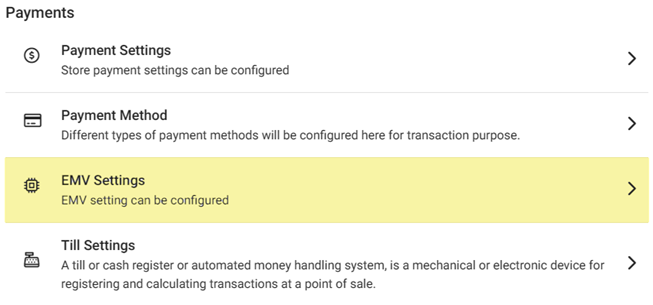
the left-side select Settings. On the Settings page, under Payments select EMV Settings.
The EMV Settings page appears and displays a table which contains all current EMVs under the Store.
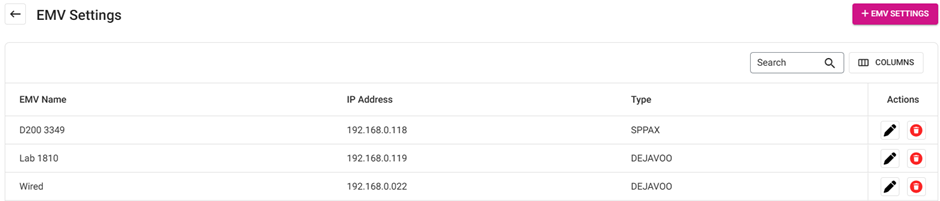
- If no EMVs have been added, the message ‘EMV
Settings not found’ appears.
- Action – Actions to
perform on an existing EMV Setting. Click Edit (pencil) to view
the EMV Settings and update accordingly - or Delete (trash can)
to delete it.
- Note: The Type and supporting fields of an existing EMV cannot be edited.
Create or Update an EMV
- Click + EMV Settings to create a new EMV (or the corresponding pencil to update an existing EMV). The New/Update EMV Settings pane appears.
- Name – (Mandatory) Enter the name in the field. It will be displayed in POS and can’t be more than 25 characters.
- IP Address – (Mandatory) Enter the IP Address in the field. Accepts letters and numbers.
- Type – Select an option from the dropdown (previously configured list). Additional fields will appear based on the selection.
- SP-PAX – Select a Serial Number from the dropdown. Based on this selection only SPPAX will be configured with POS. Select whether it’s a Go Device from the toggle (Enabled [YES] or Disabled [NO]).
- OPTOMANY, INGENICO, or CLOVER – The Port number will be configured and set by default. Click ▲ or ▼ to increase or decrease the value by 1.
- MONERIS – The Port number will be configured and set by default. Click ▲ or ▼ to increase or decrease the value by 1. Then select the Device Type from the dropdown.
- EVERTEC – Update the Port number and Terminal ID for the Evertec type.
- DEJAVOO – Enter the Auth Key, TPN and Token.
- Click Save to create the new EMV Setting and return to the main EMV Settings page. It will be added in POS and appear in the EMV Setting table.
- Click X Close at the top right (or Cancel at the bottom left) to cancel creating the new EMV and return to the main EMV Settings page.