Back Office: Enterprise - Menu Configuration
- Sign
into the LingaPOS Back Office at mystore.lingapos.com.
- On the left-side Navigation Panel, click Enterprise.
Then click Menu Configuration.

- Menu
Configuration allows you to transfer data from one Store to other Stores to eliminate duplicate definition
of the same entity for different Stores - like Menu Items, Tax, Modifiers,
etc.
Select
the Type of Store (Restaurant or Retail).
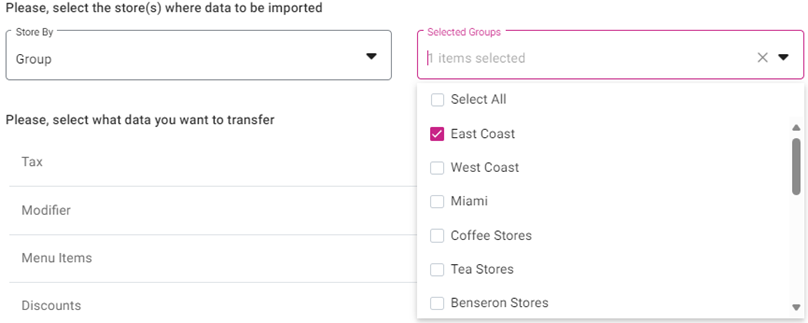
Select the Store(s) where the data will
be imported to. The Store By dropdown is for narrowing your options
(like Group, State, City, Zip). The Selected [Store(s),
Group(s), etc.] dropdown is for making your selection based upon the Store
By selection.
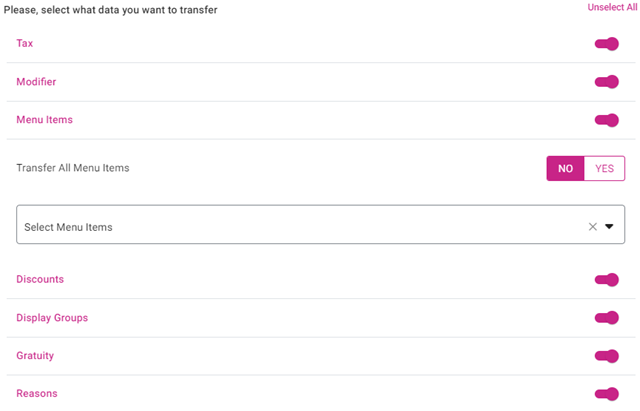
Select
the Data you want to transfer by sliding the corresponding toggle to the right
(On). Click Select All to slide all toggles on.
If Menu
Items is toggled on, select whether to Transfer All Menu Items. If No,
Select specific Menu Item(s) from the Select Menu Items dropdown.
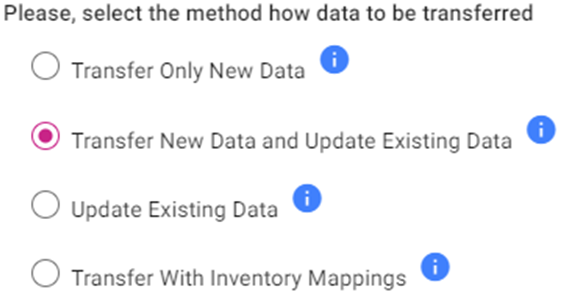
Select
the method of Data Transfer.
Transfer Only New Data – Transfers just the data that currently doesn’t
exist at the importing Store(s).
Transfer New Data and Update Existing Data – Transfers data that currently doesn’t exist at the
importing Store(s) and updates the values of any currently existing data as
needed.
Update Existing Data – Just updates the values of any currently existing data as needed.
Transfer With Inventory Mappings – A full transfer is conducted, including
inventory data.
When
ready to conduct the transfer, click Run at the top right. The Linga
logo with a spinning circle appears while the transfer is running. When the
Transfer is complete, the logo will disappear and the banner Data Transfer
operation is successfully completed appears at the top right.
