Back Office: Front End Receipt Template Settings
Navigation: Sign
into the Back Office for your Store. On the left side, select Settings. On the Settings page, under Printer Templates select Front End Receipt.
The
Front End Receipt page is broken down into sections along with a
Template Preview. Configure what you would like to include on the customer's check. Any updates made will appear immediately on the Preview. To apply changes, click Update.
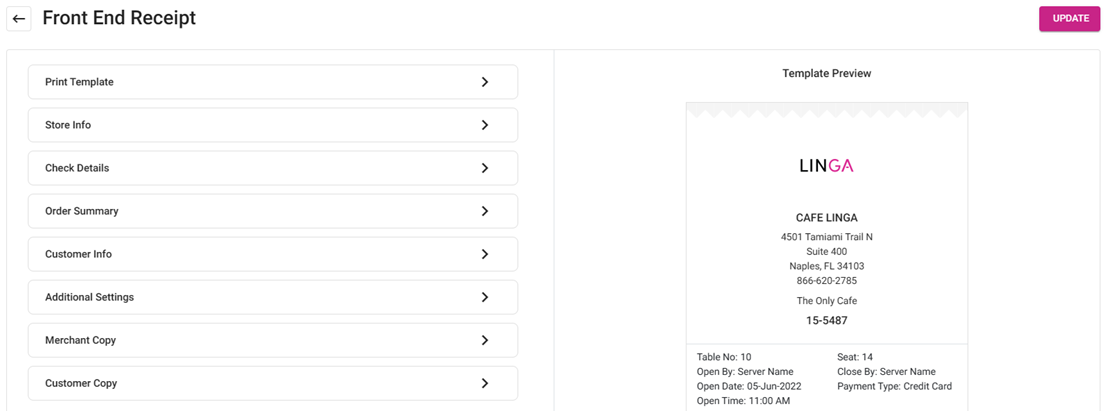
Print Template
- Select the Font Size (Small or Medium).
- Choose a Template from the dropdown (Default or New). This indicates which template any updates will be applied to when you click Update.
Store Info
- The below fields would appear in order (from top to bottom, based on the information entered in Settings > Store Info).
- Store Logo. If selected, click the Upload New Image button and select your file.
- jpg or .png
- Maximum of 2 MB
- 400x400 resolution
- Store Name – If selected, displays the Store Name.
- Address – If selected, displays the Address set in Store Information.
- Email – If selected, displays the Email Address set in Store Information.
- Phone Number – If selected, displays the Phone Number set in Store Information.
- Header Notes – If selected, enter any additional information you’d like to appear at the header of the receipt such as a signature tagline or a thank you.
- Note: if Block 1 is selected for Check Number (under Check Details), it will appear at the bottom of this section.
- Check
Details
- Check Number – If selected, then select which Box it appears in:
- Block 1 – Check Number appears at the bottom of the Store Info section.
- Set the Font Size (Normal [same size as normal receipt text] or Large).
- Above receipt image displays the Check Number in Block 1, Normal sized font.
- Block 2 – Check Number appears at the top left of the Check Details section.
- Table Name – The Table Number on the left column.
- Seat Number – The Seat Number on the right column, across from Table Number.
- Check Open Server – The name of the Server who opened the ticket on the left column.
- Check Close Server – The name of the Server who closed the ticket, across from Open.
- Open Date & Time – Day, Month, Year, and Time the Open Server created the ticket.
- Close Date & Time – Day, Month, Year, and Time the Close Server closed out the ticket, across from the Open Date & Time.
- Service Type – Type of Service provided (Example: QSR [Quick Service Restaurant]).
- Order
Summary
- Secondary Menu Name – Displays the alternate foreign language of each Menu item.
- Roll Out Modifier Price To Menu – Removes any modifier charge. Also shows:
- Roll Out Modifier To Menu – Removes the Modifier Name and its Quantity from the Receipt.
- Roll Out Modifier Price & Quantity To Menu – Removes Modifier line (rolls the modifier charge into the Item charge).
- Exclude Zero Price Menu Item – Removes any item that has a 0.00 charge.
- Tax Total - Shows the amount of Tax to be charged.
- Hide Inclusive Tax – Removes any potential additional tax from the Total Tax.
- Gratuity – Adds any Gratuity.
- Tip – Adds any Tip.
- Cash Discount – Adds any Discount ($ amount).
- Tender Details – Adds a breakdown of the Payment Types (Cash, Credit Card, Gift Card, etc.) and their corresponding Amounts).
- Show Membership Balance – Displays the balance of accrued Membership credits.
- Discount under the Menu Item – Displays each Discount under the item it was applied to.
- Print Check in Primary & Secondary Languages – Produces 2 copies of the receipt – 1 for each assigned Language.
Customer Info
- The Customer’s Contact Information, as entered when ordering.
- Customer Name – Displays the Customer’s Name.
- Address – Displays the Customer’s Mailing Address.
- Phone Number – Displays the Customer’s Phone Number (10 digits).
- Email – Displays the Customer’s Email Address, as entered when ordering.
- Customer Notes – Displays any Note entered in the field, such as a ‘Have a nice day!’.
- Note: Any Customer Note will appear in the bottom section, below their info.
- Note: The Special Note is selected under the Additional Settings section.
Additional Settings
- Tip Line – Adds the line for the Customer to include their own Tip.
- Signature – Adds the line for the Customer to Sign the receipt.
- Show E-Invoice URL – Displays the URL for the Customer to pay the bill online.
- Show E-Invoice QR – Displays the QR Code for the Customer to pay the bill online (directly below the E-Voice URL.
- Tip Suggestion – Displays a breakdown of the Tip $ Amount based on the percentage (%) of the bill. Also includes the new Total based upon the added Tip.
- Tip Suggestion Custom Message – Adds a Corresponding Service Quality Indicator (Decent, Good, Very Good, Outstanding) next to each Tip Percentage and $ Amount.
- Special Notes – Includes any special instructions provided by the Customer when ordering (Example: extra cheese, less spice, etc.). This will appear under Contact Info.
- Loyalty Amount – Includes any $ balance Amount on the Customer’s Loyalty Account.
- Barcode – Adds a barcode representing the transaction at the bottom of the receipt.
- Cut Paper After Each Print – Automatically cuts the paper after each receipt printing.
- Show Remaining Balance – Displays any remaining balance on the bill at the time of the receipt printing.
- Show QR Payment – Displays the QR Code for the Customer to access the receipt online.
- Rename Tip amount as Additional Tip – Changes the name of the traditional Tip as ‘Additional’, but only when Gratuity is applied to the check.
Merchant Copy
- These settings apply to the Merchant’s copy of the receipt only.
- Print GC Balance – Includes the remaining balance of the gift card used on the transaction.
- Print HA Balance – Includes the remaining balance of the House Account.
- Print Tab Name – Print’s the name of the person who accrued the tab.
- Print Membership Balance – Print’s the remaining balance of accrued Membership credits.
Customer Copy
- These settings apply to the Customer’s copy of the receipt only.
- Print GC Balance – Includes the remaining balance of the gift card used on the transaction.
- Print HA Balance – Includes the remaining balance of the House Account
- Print Membership Balance – Print’s the remaining balance of accrued Membership credits.