Back Office: Inventory - Inventory Item
Navigation: Sign
into the Back Office. On the left-side, select Inventory
then Inventory Item.
The
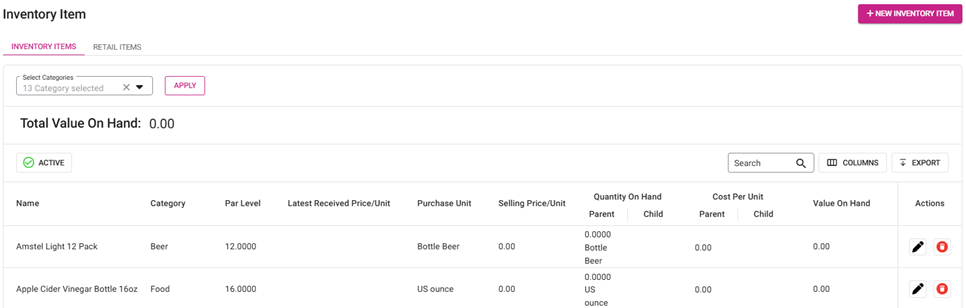
Inventory Item page appears, with tabs for Inventory Items and Retail
Items – along with a Select Categories dropdown and a Total Value
On Hand.
- Tip: Make sure you have applied settings for the following Inventory pages: Category, Subcategory, Storage Location, Vendors and In House Units.
Select from the list of Categories in the dropdown (or Select All [default]) then click Apply. The below table containing the following columns is populated:
- Name – The name of the inventory item.
- Category – The chosen category for the inventory item.
- Par Level – The entered par level for the inventory item.
- Purchase Unit – The chosen purchase unit for the inventory item.
- Selling Price/Unit – The selling price of the inventory item.
- Quantity on Hand – The total quantity on-hand from the selected Categories (Parent and Child).
- Cost Per Unit – The value of individual items from the selected Categories (Parent and Child).
- Value on Hand – The price of the stock available.
- Actions – Buttons for Edit (pencil) and Delete (trash can).
- Delete – The Delete pop-up appears, with Cancel and Delete options.
- Select Delete and the Inventory Item is sent to Inactive status with a ‘Inventory Item inactivated successfully’ confirmation message appearing.
- Select Cancel, and the Inventory Item is kept in Active status.
Create or Update an Inventory Item
- Create a new Inventory Item by clicking the + New Inventory Item button at the upper-right (or click the corresponding Edit [pencil] of an existing Inventory Item).
- The New/Update Inventory Item pane appears.
- For the New Inventory Item pane, the banner message appears at the top: ‘Once the Inventory Item is created the user will not be able to Edit the Purchase Unit & Inventory Unit. In case you want to change, delete the Inventory Item & recreate the same.’.
- The Save / Update buttons will not be enabled until all Mandatory fields are entered.
Basic Details
General
- Name – (Mandatory) Enter the name of the inventory item. Maximum of 25 characters.
- Inventory Unit – (Mandatory) Select the Inventory Unit from the dropdown (Active In House Units configured from Inventory > In House Units).
- When chosen, the Unit appears for Par Level field and Inventory Unit column.
- Par Level – Enter the par level (with Inventory Unit labeling).
- If an Item goes below the Par Level, you will get a Low Stock notification.
- Select Category or Sub Category (Mandatory).
- Category – Select the Category from the dropdown (configured in Ingredient Categories).
- Sub-Category – Select the Category then the Sub Category from the dropdowns (configured in Ingredient Categories and Sub Categories).
- Calculate COGS On Cost Price – Toggle to Disable (NO, Default) or Enable (YES).
- If Enabled, the Cost Of Goods Sold (COGS) will be calculated based on the cost price itself.
- If Disabled, COGS will calculate based on Purchased Price (selling price).
Storage
- Primary Storage – (Mandatory) Select the primary storage from the dropdown (from options created in the Back Office via Inventory > Storage Location).
- Click + Add Primary Storage to create a new Primary Storage via the New Storage Location pane (enter the Name [Mandatory, max 25 characters] and Description [max 150 characters]).
- Secondary Storage – (Mandatory) Select the secondary storage from the dropdown (from options created in the Back Office via Inventory > Storage Location).
- Click + Add Secondary Storage to create a new Secondary Storage via the New Storage Location pane (enter the Name [Mandatory, max 25 characters] and Description [max 150 characters]).
- Tracking – Select the type of tracking for the inventory item (No Tracking, By Serial Number or By Lot Number). The expired purchase item section will function based on this tracking, and wastage also will be tracked.
Vendor
- If there are no existing Vendors, the following instructions appear:
- 'A vendor is a supplier who provides goods such as products for resale in retail or ingredients and supplies for restaurants and helps to maintain inventory and support daily operations
Click +Add Vendor to attach new vendor.' - Select + Add Vendor to create a new Vendor tab (with an x next to the name to delete the vendor). Multiple Vendors can be added.
- The button at the upper-right of each tab indicates whether the Vendor is Active or Inactive. Select the button to change it to the other status.
General
- Vendor – (Mandatory) Select the Vendor from the dropdown (created in Inventory > Vendor).
- Brand Name – Enter the name of the brand (maximum of 25 characters).
- SKU/Bar Code – Enter the SKU/Bar Code (same as Back Office design, maximum of 50 characters).
Purchase
- Select the Purchase Unit (Mandatory), which will reflect in the auto-populated Quantity based on the selected Inventory Unit.
- Example: Purchase Unit US Quart = 0.25 Inventory Unit Gallon.
Price
- Quantity – (Mandatory) Enter the purchase unit multiplier.
- Price – (Mandatory) Enter the total Price.
- Yield – (Mandatory) The default percentage (%) is 100 but can be updated (between 1 - 100).
- Price / Unit – (Mandatory) Auto-calculated based on the formula = Quantity / Price
Recipe Units
- Create multiple Recipe Units for a single Inventory Item. The table contains the following columns:
- Inventory Unit – Auto-populated based on the previously selected Inventory Unit next to Name. It cannot be edited.
- Recipe Unit – Select the Recipe Unit from the dropdown list which is already linked with the Inventory Unit.
- The formula appears above the table: Recipe Unit = Price Per Unit / (Purchase Unit Multiplier * Recipe Unit Multiplier)
- Recipe Quantity – Enter the quantity for the Recipe Unit.
- Recipe Price – Populated based on the formula = [Weighted Average / Latest Unit Price] - and the amount can be updated if needed.
Add a Recipe Unit to the Inventory Item
- Select + Add Recipe Unit to add a new row to the table, then fill in the fields as described above.
- When ready, select Save / Update at the upper-right. You're returned to the main Inventory Item page under the Inventory Items tab, where a confirmation banner appears at the upper-right. If a new Inventory Item was created, it will be added as a row in the table.