Back Office: Inventory - Purchases
Navigation: Sign
into the Back Office. On the left-side, click Inventory
then Purchases.
The
Purchases page appears, with options for Purchase Templates,
Purchase Orders, Purchase Invoices,
Received Items, or Expired Purchase Item.
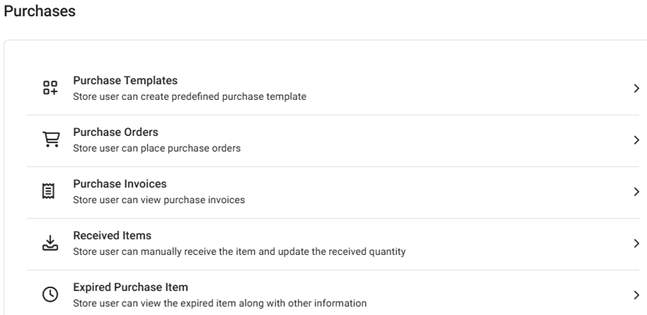
Purchase Templates
Purchase Orders
Purchase Invoices
Received Items
Expired Purchased Item
Purchase Templates
You
can save a Template with Vendor details and frequently ordered
items. After that, you can use the Template to make Purchase Orders
in future for those items. The page contains
a table of currently existing Purchase Templates, with the following
columns:
- Name – The name of the Menu Item
- Vendors – The selected vendor from the options assigned under the Store
- Actions – A Purchase Order can be placed, or the Purchase Template can be Edited or Deleted.
Create or Update a w Purchase Template
- Select + New Purchase Template to create a new Purchase Template or under the Actions columns click the corresponding three dots (•••) then Edit to update an existing Purchase Template.
- On the New / Update Purchase Template pane appears, select or update the following information:
- Name – (Mandatory) The name of the Purchase Template
- Vendor – (Mandatory) Select a Vendor from the dropdown list of registered Vendors.
- The Vendor Address (the mailing address of the selected Vendor) will be auto-populated can't be edited.
- The Ship To is your Store’s address, which is pre-populated from Store Information and can be updated there if needed.
- For the Items To Be Ordered, click the + Add Inventory Item button below the table to add a new Inventory Item row. It will not be clickable unless a Vendor was selected. When the new row appears, it is broken down by the following columns:
- Item – Select an item (registered for the particular vendor) from the dropdown.
- When an Item is selected, the Brand, Quantity, Unit Price, Tax, and Total will be populated.
- SKU Code – The item’s SKU Code.
- Brand – Select from the dropdown if different from the pre-populated value.
- Quantity – Enter the desired numeric value and/or select ▲/▼ to increase/decrease the value.
- Unit Price – Previously defined price of the Item (cannot be altered or changed).
- Total = Price (Quantity x Unit Price) + Tax. This value automatically updates based on the entered Quantity.
- Total – Below the table, sum of all Total values in the table.
- When satisfied with the Purchase Template, select Save (or Update). You're returned to the Purchase Templates page, where the confirmation banner appears at the upper-right. If a new Purchase Template was created, it will be added as a row in the table.
Purchase Orders
On the Purchase Orders page, you can place an Order to the Vendor for the items that you want to purchase. Select the Vendor, Status and Time Period from the dropdowns then select Apply to populate the table with the following columns:
- Purchase Order ID – The unique ID Number (generated when the PO was created)
- Vendor – The name of the Vendor
- Order Date – The Date the PO was submitted
- Status – The PO’s Status (Placed, Partially Received, Received or Cancelled)
- Actions – Any of the following options may be available:
- Print – When selected, the Print screen appears. It displays details of the created PO: Date (Current Date), Vendor Name (with address if provided), Ship To address, Order ID, Receive Date (as in expecting date). Placed Order details such as S. no, Barcode/SKU, Name of item, Quantity, Unit Price, Price, Tax, Total, and Total (of all items on the PO).
- Edit – The Update Purchase Order page appears.
- Vendor – If a new PO, select from the dropdown. If an existing, it will be greyed out
- Date – Select the date the PO was received
- Place Order Via – Select Email or Print
- Vendor Address and Ship To – Auto-populated based on the selected Vendor
- If you’re adding Inventory Items, select + Add Inventory Item.
- To delete an Inventory Item from the PO, click the corresponding trash can of the row line item
- In the main screen status will be changed from Placed to Modified
- When a partially received PO is edited, on the received PO screen the previously received field will appear with Date and Time [MM/DD, YYYY 0:00:00 AM/PM format]
- If a previously received PO is selected, it will expand with Order Details such as Date, Item Name, Quantity, Price per unit.
- Receive – The Receive Purchase Order screen appears, with the following fields:
- Vendor – The name of the vendor created during inventory item
- Place Order Via – How the PO is being communicated (Print or Email), set during PO creation
- Vendor Invoice No – The Invoice Number provided by the Vendor can be entered here
- Receive Date – Select the date the PO was received (calendar view)
- Ordered Items - This section displays a table containing the following columns:
- Item – The inventory item(s) added to the PO
- SKU Code – The unique code assigned to the selected Item
- Vendor Brand – The name of the Vendor and Brand the Item was assigned to
- Quantity – The quantity of item selected during PO creation
- Price – The price set during PO creation, based on the Quantity and Price Per Unit.
- Price Per Unit – The price of each item based on configuring during PO creation
- Received Quantity – The amount of the item being received set during the PO creation
- Received Price – The value of the formula = Price Per Unit * Received Quantity, with the Total shown for the Received Price column
- Primary Storage – Storage which is set during creation of the inventory item. If no storage is selected during that time, it can be selected from the dropdown.
- Secondary Storage – Storage created storage location will be displayed in the dropdown.
- Total – The Total amount for the item.
- Click Receive Items at the upper-right. You're returned to the Purchase Orders screen where a confirmation banner appears at the upper-right.
- Cancel – When selected for a Placed PO, the Reminder pop-up appears with Yes or No options.
- If Yes, the ‘Purchase order cancelled’ confirmation message appears and the PO is deleted.
- If No, the PO will be kept and still be Placed.
- Check Logs – The Logs screen displays appears a history of action(s) conducted on a PO - with details of the PO (its ID and associated Vendor Name), then a log with each listing showing the Event (Placed / Received / Modified / Canceled), the Date (and Time) the PO was placed and received, then the Back Office User (user name and store name) who performed the action.
- Repeat Order – The New Purchase Order screen appears that will be pre-populated similar to an Edit screen. Confirm the information on the screen and update as needed, then click Place Order at the upper-right.
- Save As Template – The New Purchase Template page appears (under Purchase Templates).
- Enter the Name of the template
- Confirm the Vendor, Addresses and Items to Be Ordered which will all be pre-populated based on info in the PO.
- Once ready to create the template, click Save.
- You are taken to the Purchase Template page, where the message ‘Purchase template Saved Successfully!’ appears, and the PO Template will be visible as a Purchase Template.
Purchase Invoices
Displays a table of invoices (Order details of all purchased Items), containing the following columns:
- Purchase Invoice ID – The unique ID of the Invoice.
- Invoice Number – The invoice number generated from the POS. It can be generated from the Receive Inventory Item page.
- Received Date – The Date and Time the invoice was received.
- Ordered Date – The Date and Time the PO was created.
- Vendor – The name of the vendor attached to the invoice.
- Vendor Invoice Number – The number of the vendor’s invoice (mentioned in the PO).
- Last Updated On – The Date and Time a Purchase or (Repeated) Order is made from PO.
- Status – The status of the Invoice (Received, Edited, etc.)
- Actions – Click the pencil to Edit an existing invoice. The Edit Purchase Invoice page appears, where only the Vendor Invoice field can be edited while other fields will be grayed out.
The table below contains the following columns: - Item – The name of the item added to the PO
- SKU CODE – The item’s corresponding unique number
- Vendor Brand – The name of the Vendor and Brand attached to the inventory item
- Quantity – The quantity of item provided while creating menu item and during purchase order creation will be displayed.
- Price – Price configured during PO creation based on the Quantity and Price Per Unit
- Price Per Unit – Price per unit which is configured during purchase order.
- Received Quantity – The amount of items added to the PO, set during PO creation
- Received Price – The value of the formula Received Quantity * Price Per Unit, along with the Total.
- Primary Storage – Storage selected during creation of the inventory item.
- Secondary Storage – Secondary location where the item is stored, if applicable.
- When done editing the Purchase Invoice, select Save at the upper right. You're returned to the Purchase Invoices screen, with the message ‘Invoice Updated Successfully’ appearing at the upper right.
- To close the Purchase Invoice without editing, select the <- next to the Edit Purchase Invoice header.
Received Items
You can manually receive the Orders that were not placed under the Purchase Orders page.
- Example: You just placed an Order with a Vendor then emailed them. Once the Order is received, access the Received Item page to manually receive it in the Back Office.
Select
the Type, Consumption Status and Time Period from the
dropdowns then click Apply to populate the table containing the
following columns:
- Name – The name of the inventory item (created under the Inventory section).
- SKU CODE – The item’s unique code
- Type – The type of Item (Inventory Item, Retail Item or Sub Recipe).
- Inventory Count – The available quantity of the Item
- Received Quantity – The amount of the item that received (set during PO creation)
- Price – The item’s price value will be displayed.
- Primary Storage – Where the inventory item is primarily stored (selected during creation of the item). If no storage is selected during creation, one can be selected in the dropdown.
- Secondary Storage – Where the item is secondarily stored, if applicable.
Select + Receive New Item to create a new Received Item. The Receive New
Item pane appears:
- Barcode/SKUCODE – The unique code that represents the item. Can be pre-populated based on the selected Inventory Item, or manually entered.
General - Inventory Item – Select from the dropdown. Other fields auto-populate based on the selection.
- Vendor – Displays the vendor based on the Inventory Item selection.
- Brand – The item’s brand name, based on the Inventory Item selection.
- Vendor Invoice No – Enter any invoice number related to the vendor and item, if applicable.
Price - Quantity – Enter the quantity of the item to be purchased and/or use ▲/▼ to change the value.
- Price – The total price, which is the value of the formula = Quantity * Price Per Unit.
- Price Per Unit – The price of a single item. Auto-populates based on Inventory Item selection.
Storage - Select the Primary Storage from the dropdown (if not already auto-populated), and the Secondary Storage (if applicable).
- When ready to create the new Received Item, select Save at the bottom-right. You are returned to the Received Items page, where the confirmation banner appears at the upper right and the new Received Item will be added as a row in the table.
- To close the pane without creating the Received Item, select Cancel at the bottom-left (or X Close at the top-right).
Expired Purchased Item
- If Tracking is enabled when an Inventory Item is added, any expired items will appear on this page.
- For the receiver’s PO, the Expired Date for a purchase item can be selected, so that Date will be displayed. Details of each item are displayed in table format with the following columns:
- Inventory Item – The inventory item for the expired purchase item.
- SKU Code – The unique code of the item.
- Purchase Order ID: The PO ID generated from when a new PO is placed.
- Lot/Serial Number – The Lot/Serial Number for the order (created from Inventory item only when tracking is enabled). It can be either lot or serial, set by the customer in Inventory item. It can be configured in received purchase order.
- Vendor – The name of the vendor for the respective inventory item will be shown here.
- Purchase Date – The Date the inventory item was purchased.
- Expiry Date – The Date the inventory item expires (set during purchase).
- Expired Quantity – The amount of the inventory item that expires (any leftover quantity that has passed the Expiration Date).
- Wastage Quantity – The amount of expired quantity which was deleted from the control will be shown here (it will have an impact in wastage reports).
- Status – Whether the inventory item was Deducted or Not Deducted.
- Action – The option to Delete will be available. On the Delete pop-up that appears, click Delete to confirm deleting the item.