Back Office: Marketing - Manage List
Sign
into the Back Office and select a Store.
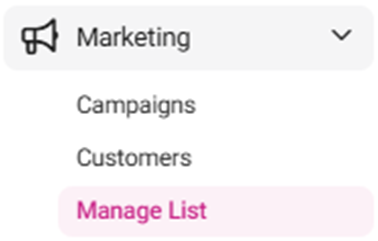
On the left-side Navigation
Panel, select Marketing then Manage List.
The
Manage List screen contains a table of created marketing Lists,
with the following columns, based on selections made when creating each List:
Name – The customer’s name.
List Type – The type of list (Static
or Dynamic).
Customers Targeted – The number of
customers targeted.
Sent Targeted – The number of Emails sent to the target group.
Actions – Select
the Delete option to delete a List. The Delete pop-up
appears, with options to select Delete or Cancel / X Close.
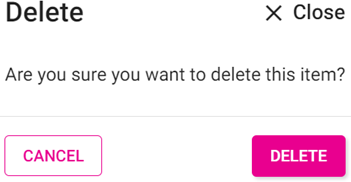
Delete – Deletes the list. It is removed
from the Manage List screen.
Cancel / X
Close – Keeps the List. It still appears on the Manage List screen.
If
there are no existing Lists, the message ‘Manage List not found’ appears
in the body of the table.
To
create a new List, click + Create List. You are redirected to the
Customers page (traditionally access when selecting Marketing >
Customers). After a List is created from that page, you are
redirected to the Manage List screen.
Related Articles
Back Office: Marketing - Customers
Sign into the Back Office then select a Store. On the left-side Navigation Panel, select Marketing then Customers. The Customers page appears, displaying your customers’ details. Tiles appear at the top of the page, representing the Total number of ...
Back Office: Marketing - Campaigns
Sign into the Back Office. Select a Store. Then on the left-side Navigation Panel, select Marketing then Campaigns. The Campaigns screen displays a table containing the created marketing campaigns, with the following columns: Name: The name of the ...
Back Office: Marketing - Settings
Sign into the Back Office and select a Store. Onhe left-side Navigation Panel, select Marketing then Settings. The Settings page contains options to quantify the thresholds for types of Customers. Enter the number for each field, or use ▲/▼ to ...
Back Office: Home
Sign into the Back Office. then select a Store. You should be taken to that store’s Home page. If not, then on the left side navigation, click Home. Tip: Type the name of the Store in the Search bar for quicker Store selection. For every Dashboard ...
Back Office: Wait List Application Settings
With an Enterprise Account: sign into the Back Office and select a Store. If you are a non-Enterprise Level user, you will be taken directly to the Home screen. On the left-side Navigation Panel, click Settings. On the Settings page, under ...