Back Office: Products/Items - Category

Back Office: Products/Items - Category


  1. Sign into the Back Office for your Store.

  2. On the left-side Navigation Panel, click Products/Items then Category.

  3. On the Category screen: create a new Category by clicking + NEW CATEGORY
    1. Or update an existing Category by clicking the pencil icon.

  4. For a Display Group:

    1. General – POS Display Button
      1. Set a POS Display Button for the Category to display as:

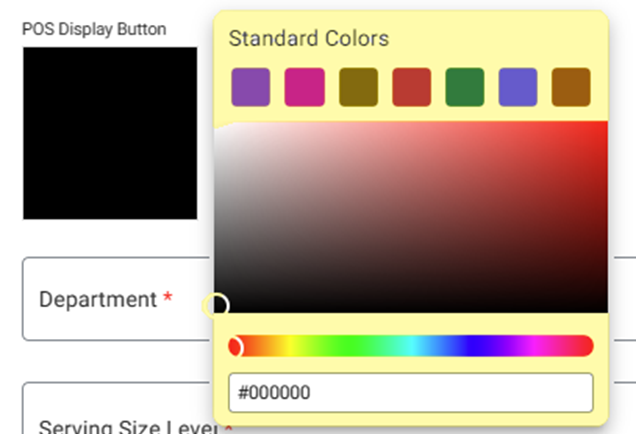
        1. Standard Color
          1. Click the small colorized square (next to the larger colorized square).
          2. Select the color by using the 2 sliders.

        2. Upload New Image
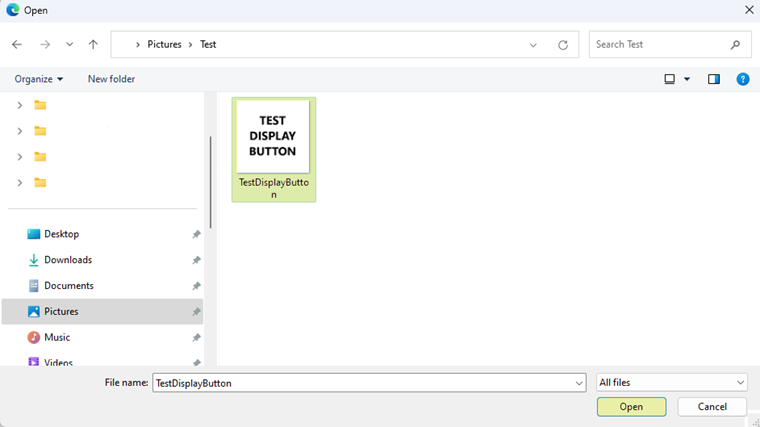
          1. Click the icon of the  document with the upwards facing arrow. A File Explorer pop-up window appears.
          2. Navigate to where your Display Button image is saved, then select the file and click Open or just double-click it.
            1. File FormatJPG or PNG
            2. File Size – Maximum of 2 MB
            3. Resolution – Recommended 400px by 400px


    2. General – Name
      1. Set the Name – the name will appear as a caption for the Display Button.



    3. General – Department
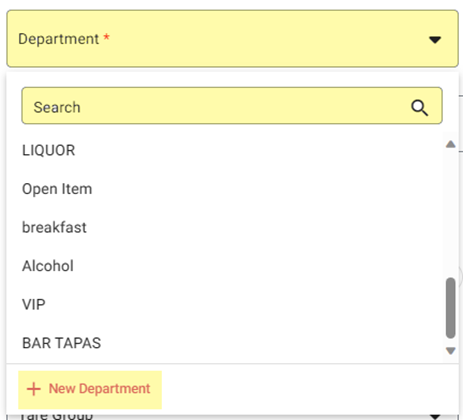
      1. Select the Department from the dropdown (established under Products/Items > Departments). Also, here you can create a new Department by clicking + New Department. For more information on a new Department, see the Department article.


    4. General - Coursing
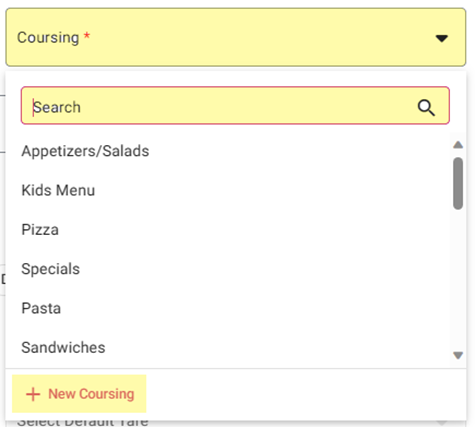
      1. Select the Coursing from the dropdown (established under Products/Items > Coursing). Also, here you can create a new Course by clicking + New Coursing.


    5. General – Serving Size Level
      1. Select the Coursing from the dropdown (established under Products/Items > Coursing). Also, here you can create a new Course by clicking + New Coursing.

    • Related Articles

    • Retail Back Office: Products/Items - Category

      Navigation: Log into the BO for your Store then select Products/Items > Category. Create a New Category / Update an Existing Category Create a new Category by clicking + New Category. Or update an existing Category by clicking the corresponding ...
    • Back Office: Products/Items - Products/Items

      Sign into the Back Office for your Store. On the left-side Navigation Panel, click Products/Items then Products/Items. On the Products/Items screen, click + New Menu Item or click the ••• under Actions to Edit, Copy or Delete a Menu Item. (1) Basic ...
    • Retail Back Office: Products/Items - Products/Items

      Navigation: Log into the BO for your Store, then select Product/Items > Product/Items The Products/Items page appears, which displays a table for Retail Items. Create a New Retail Item (or Update an Existing Retail Item) Click + New Retail Item at ...
    • Back Office: Products/Items - Upcharges

      Sign into the Back Office then select a Store. On the left-side Navigation Panel, click Products/Items then Upcharges. The Upcharges page appears. It contains a table of existing Upcharges, along with functionality for Active, Search, Columns, and ...
    • Back Office: Products/Items - Sort Menu Config

      Sign into the Back Office. On the left-side Navigation Panel, click Products/Items then Sort Menu Config. The Sort Menu Config screen appears, which displays the list of all Menu Items, along with Categories, Sub Categories, Display Groups, and Menu ...