Back Office: Products/Items - Discounts (Open Check)

Back Office: Products/Items - Discounts (Open Check)

  1. Sign into the Back Office and select a Store.

  2. On the left-side Navigation Panel, click Products/Items then click Discounts.
         

  3. On the Discounts page, select the Open Item tab. On the Open Item page, click Edit.
    1. Tip: You can Activate or Deactivate the Discount. If it shows Activate it means the Discount is currently Deactivated.


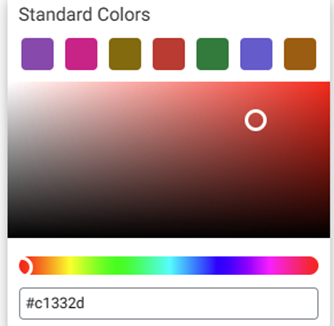
  4. POS Display Button Click the small colorized square next to the large one. The Standard Colors pane appears. Select the Standard Color and use the slider to adjust the shade.


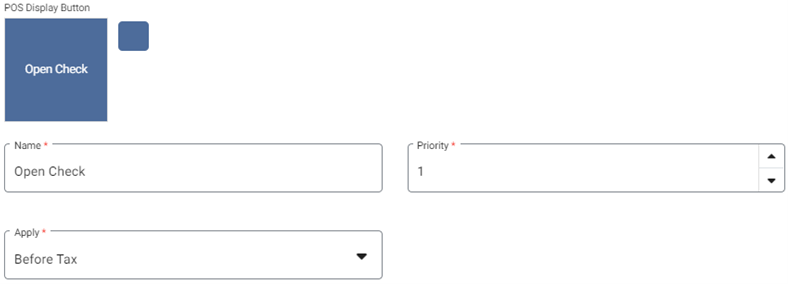
  5. Enter the Name, Priority (typically 1), Quantity (number of times ordered to unlock Discount), and whether to Apply Before or After Tax. The Name appears on the Display Button.


  6. Select the Discount Type (Promo, Comp, or Donation).


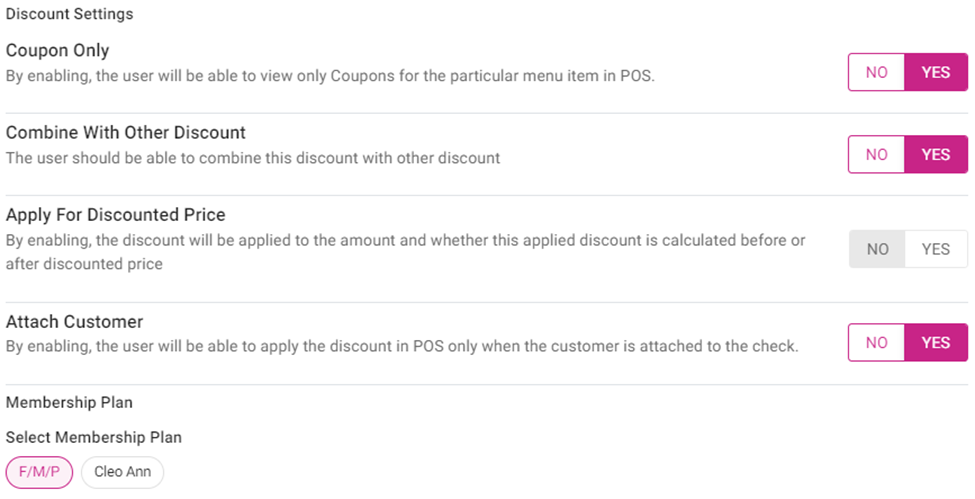
  7. Select the Discount Settings
    1. Select whether this Discount is Coupon Only.
    2. Select whether to Combine With Other Discount. If Yes, then Apply For Discounted Price appears and is enabled.
    3. Select whether there is a requirement to Attach a Customer to the check to apply the Discount.
    4. Select whether there is a Membership Plan for this Discount.


  8. Rates
    1. Select whether there is a Discount In Percentage. If Yes, enter the Minimum and Maximum Percentages.


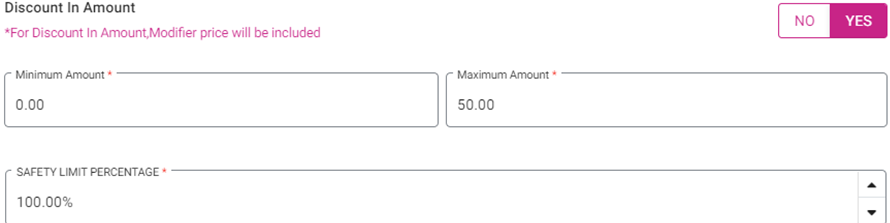
    2. Select whether there is a Discount In Amount. If Yes, enter the Minimum and Maximum Amounts, then the Safety Limit Percentage.


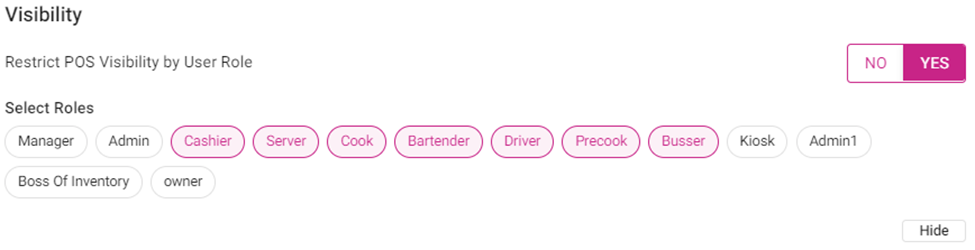
    3. Select the Visibility – Choose whether to Restrict Visibility by Role. If Yes, select the Roles that are eligible for this Discount. Click Show All to view all the Role options.


  9. Click Update and Publish. (The button appearing pink means updates have been made).


    • Related Articles

    • Back Office: Products/Items - Discounts (Open Item)

      Sign into the Back Office. On the left-side Navigation Panel, click Products/Items then click Discounts. Open Item Discount On the Discounts page, select the Open Item tab. On the Open Item page, click Edit. Tip: You can Activate or Deactivate the ...
    • Back Office: Products/Items - Discounts (Check-Based)

      Sign into the Back Office and select a Store. On the left-side Navigation Panel, click Products/Items then click Discounts. On the Discounts page, select the Check Based tab, then click + New Discount. You’re taken to the Check Based page. Tip: You ...
    • Products/Items - Discounts - Intro to Open Check Discount

      Products/Items>Discounts>Open Check      o    Sign into the LingaPOS back office online at mystore.lingapos.com o    Click on the Products/Items tab on the Navigation Panel o    Click on the Discounts tab o    Click on the Open Check tab o    Click ...
    • Back Office: Products/Items - Discounts (Item-Based)

      Sign into the Back Office and select a Store. On the left-side Navigation Panel, click Products/Items then click Discounts. Create an Item Based Discount On the Discounts page, select the Item Based tab (default selection), then click + New Discount. ...
    • Creating a Discount

      Navigate to Products/Items -> Discounts Open Item / Open Check Both are set up the same way with the only difference being that the Open Item discounts only a selected item whereas the Open Check discounts the entire check.   -          Create a name ...