Back Office: Products/Items - Import/Export
Navigation: Sign
into the Back Office. On
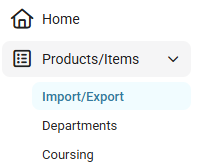
the left-side, select Products/Items then Import/Export.
The Import/Export page enables you to configure a Store’s Menu Items via File Upload, and contains the following options:
- Download Template – Select Minimal Sheet or Complete Sheet to download that version of the spreadsheet (MS Excel) template file.
- Download Data – Select Minimal Sheet or Complete Sheet to download that version of the spreadsheet (MS Excel) template file that includes data.
Perform a Menu Import
- Fill in the downloaded Template file as needed then save it. Make a note of where it’s saved.
- When the file is ready, click Import. The Import Menu pane appears.
- Select Sheet Type – Select Minimal or Complete.
- Preview Menu – Select Yes to show a preview, or No.
- Upload Menu Template – Click Upload Menu Template. On the file navigation window that appears: navigate to where your file was saved and double-click the file (or single click then click Open).
- You're returned to the Import Menu pane where the file name (defaults to [Restaurant Name]'s Menu WB]) will appear in the Upload Menu Template section.
- When you’re ready to import the file, click Import at the bottom-right. You're returned to the main Import/Export page where a progress bar appears.
- After a few moments: once the import completes, the Import Status will appear as below:
- File Name: The name of the file that was uploaded ([filename].xlsx)
- Uploaded On: The date the file was uploaded (DD -Mon-YYYY HH:MM AM/PM format)
- Status: The status of the import - such as Completed, Partially Completed or Failed)
Import Error
If there's an error with the import:
The Download Error List will appear above the Status, with a link to download a version of the upload file that includes cited errors. The Status will appear as Partially Completed [DD-Mon-YYYY HH:MM AM/PM].

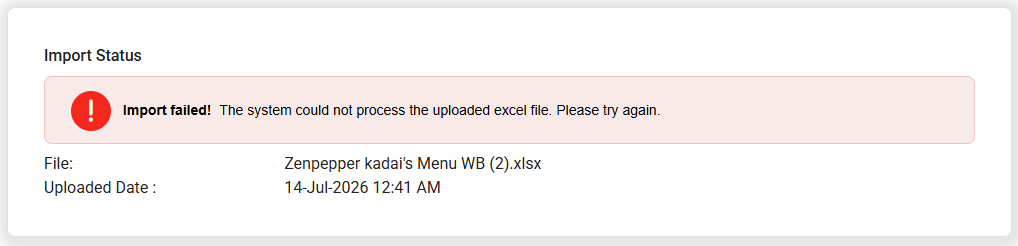
Import Failed
If the import outright fails: the Import failed! banner appears, followed by the File you attempted to upload along with the attempted Uploaded Date.