Back Office: Products/Items - Sort Menu Config

Back Office: Products/Items - Sort Menu Config

  1. Sign into the Back Office.

  2. On the left-side Navigation Panel, click Products/Items then Sort Menu Config.
              

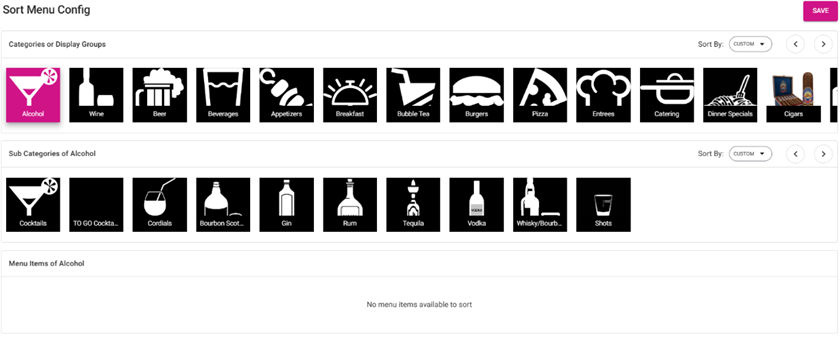
  3. The Sort Menu Config screen appears, which displays the list of all Menu Items, along with Categories, Sub Categories, Display Groups, and Menu Items – with a Save button at the top-right of the screen.


    1. Categories or Display Groups - The list of all the saved Categories or Displayed Groups - with a Sort By dropdown and < Left and Right > arrows for navigation.
      1. Sort By Dropdown – Available for Categories, Sub Categories or Display Groups. The options are Alphabetically (A-Z or Z-A), or Custom (you can drag-and-drop the list’s tiles into whatever order you’d like).

      2. Right Arrow > - When clicked, you proceed to the right on the list of tiles.
      3. Left Arrow < - When clicked, you proceed to the left on the list of tiles.


    2. Sub-Categories – If a Category is connected to a Sub Category, the Sub Category attached to the selected Category (highlighted in pink) will be displayed.
      1. Sort By is available for Sub Categories.


    3. Menu Items – If clicking a particular Sub Category under a Category, the list of Menu Items under the Sub Category will appear.

      1. If a Sub Category isn’t connected to a Category, the list of Menu Items is displayed directly under the Category.

      2. Sort By is available for Menu Items.

  4. Once you’ve performed all your required sorting, click Save. Your sort settings will be saved, and the confirmation message ‘Items sorted successfully’ appears.

    • Related Articles

    • Back Office: Products/Items - Products/Items

      Sign into the Back Office for your Store. On the left-side Navigation Panel, click Products/Items then Products/Items. On the Products/Items screen, click + New Menu Item or click the ••• under Actions to Edit, Copy or Delete a Menu Item. (1) Basic ...
    • Back Office: Products/Items - Upcharges

      Sign into the Back Office then select a Store. On the left-side Navigation Panel, click Products/Items then Upcharges. The Upcharges page appears. It contains a table of existing Upcharges, along with functionality for Active, Search, Columns, and ...
    • Back Office: Products/Items - Modifiers

      Sign into the Back Office. On the left-side Navigation Panel, click Products/Items then Modifiers. On the Modifiers screen: create a New Modifier by clicking + NEW MODIFIER or update an existing Modifier by clicking the pencil icon. For a Modifier: ...
    • Back Office: Products/Items - Import/Export

      Import/Export enables you to configure a Store’s Menu Items through File Upload Sign into the Back Office. On the left-side Navigation Panel, click Products/Items then Import/Export. The Import/Export screen appears. The Know More link directs you to ...
    • Back Office: Products/Items - Bulk Update

      Sign into the Back Office and select a Store. On the left-side Navigation Panel, click Products/Items then Bulk Update. You are taken to the Bulk Update page. On the Bulk Update page, you can narrow down the Category / Sub Category options by ...