Back Office: Sales Recap Report Settings
Navigation: Sign
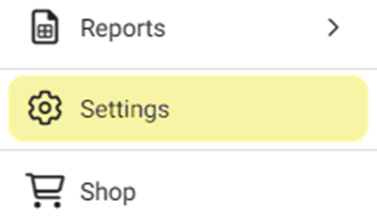
into the Back Office for your Store. On the left-side Navigation Panel, click Settings. On the Settings page, under Reports click Sales Recap Report.
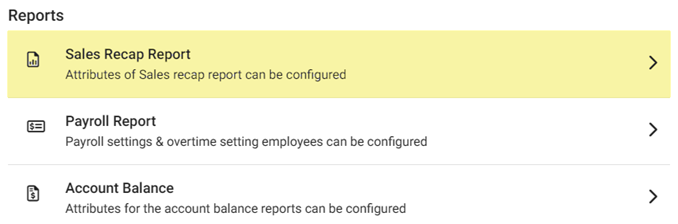
The Sales Recap Report page contains the following sections:
General
- Guest/Checks – If Enabled (YES) any Guests/Checks will appear on the Sales Recap Report. If Disabled (NO), they won’t appear on the report.
- Cover – The count of the specific Category/Subcategory/Menu Items that are used on that Business Date. If Enabled (YES), they will appear on the report and the Level option appears. If Disabled (NO), they won’t appear on the report.
- Level - If Enabled (YES), the Level Type field appears.
- Level Type – Select Category, Subcategory, or Menu Item. The following dropdown is based upon this selection. Select one or more optionfrom the dropdown, or Select All. You can de-select an option if needed.
Sales
- Grand Sales – If Enabled (YES) the grand sales for the day will appear on the report. If Disabled (NO), they won’t appear.
- Gross Receipt – If Enabled (YES) the total value of sales for the day will appear on the report. If Disabled (NO), it won’t appear.
- Gross Void – If Enabled (YES) the Net Void done of all tenders of the day will appear on the report. If Disabled (NO), it won’t appear.
- Net Void – If Enabled (YES) the Net Void of all tenders of the day will appear on the report. If Disabled (NO), it won’t appear.
Payments
- CC Split Up – If Enabled (YES) the credit card sales with card type, count, and sale value will appear on the report. If Disabled (NO), they won’t appear.
- Other Payments Split Up – If Enabled (YES) other mode payments aside from credit card will appear on the report. If Disabled (NO), they won’t appear.
- Payment Name – Select how the mode names are defined (System Defined or User Defined).
Taxes
- Tax Split Up – If Enabled (YES) the specific taxes and amounts that have been applied will appear on the report, and the Tax with Net Sales toggle appears. If Disabled (NO), they won’t appear and the Tax with Net Sales toggle won't appear.
- Tax Exempt – If Enabled (YES) the total exemption given for the day will appear on the report. If Disabled (NO), it won’t appear.
- Tax with Net Sales – If Enabled (YES) the tax along with the net sales will appear on the report. If Disabled (NO), it won’t appear.
Summary
- Opening Balance – If Enabled (YES), then if the Till option then the Till amount can be entered and will appear on the report. If Disabled (NO), it won’t appear.
- Paid In/Out – If Enabled (YES), the total Paid In/Out performed by the cashier will appear on the report. If Disabled (NO), it won’t appear.
- Cash Drop – If Enabled (YES), the amount of Cash Drop (if any) performed by the cashier appear on the report. If Disabled (NO), they won’t appear.
- Cash Expected – If Enabled (YES), the amount submitted from cashier at the end of the day will appear on the report. If Disabled (NO), they won’t appear.
- Over/Shortage - If Enabled (YES), the Over/Shortage amount submitted by cashier for the day will appear on the report. If Disabled (NO), they won’t appear.
Formula Definition
- Cash Expected – If Enabled (YES), the expected cash from cashier at the end of the day will appear on the report. Select one or more options (or Select All) from the Add and Subtract dropdowns. Note: an option can't appear under both Add and Subtract. If Disabled (NO), they won’t appear.
- Overage/Shortage – If Enabled (YES), the amount submitted from cashier at the end of the day will appear on the report. Select one or more options (or Select All) from the Add and Subtract dropdowns. Note: an option can't appear under both Add and Subtract. If Disabled (NO), they won’t appear.
Other Summaries
- Department Summary – If Enabled (YES), the department’s total sales will appear on the report. If Disabled (NO), they won’t appear on the report.
- Category Summary – If Enabled (YES), the category’s total sales will appear on the report. If Disabled (NO), they won’t appear on the report.
- Hourly Summary – If Enabled (YES), the total sales by hour will appear on the report. If Disabled (NO), they won’t appear on the report.
When
all Sales Recap Report settings have been set and all mandatory fields have been filled in, click Update at the
upper-right. The confirmation banner ‘Sale Recap Settings Updated
Successfully’ appears.
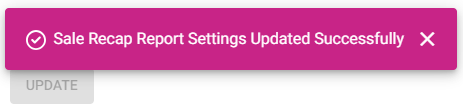
- If the button is greyed out: it means no changes have been made, or that mandatory fields have not been filled in.