Back Office: Store Notifications Settings
Navigation: Sign
into the Back Office and select
a Store. On
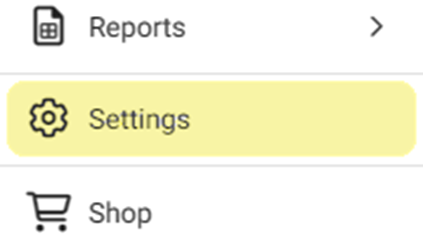
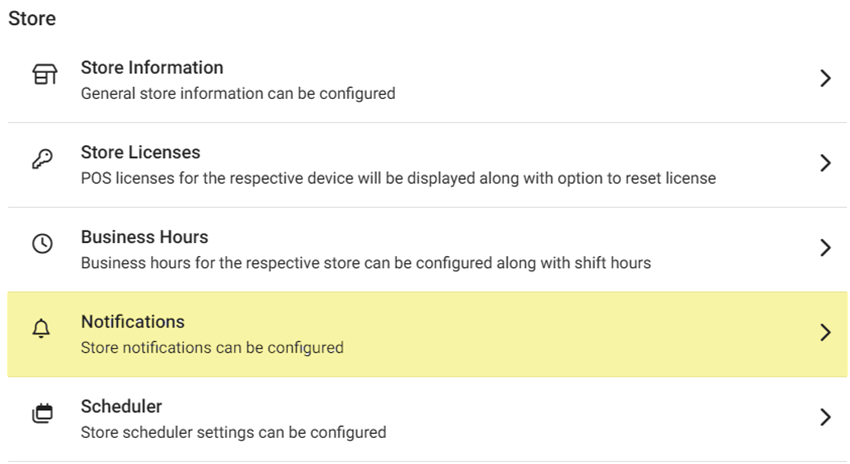
the left-side Navigation Panel, click Settings. On the Settings page, under Store select Notifications.
- On the Notifications screen: there is a YES/NO toggle for the following options:
- Discount: If Enabled (YES), enter the discount amount in the Discount Limit field (numeric values only), and the Notify By option will appear with two checkboxes Text & Email.
- Void: If Enabled (YES), enter the Void amount in the Void Limit field (numeric values only), and the Notify By option will appear with two checkboxes Text & Email.
- Max No Cash Drawer Accessed For No Sale: If Enabled (YES), enter the limit amount in the Limit field (numeric values only), and the Notify By option will appear with the Text & Email checkboxes.
- Time Clock: If Enabled (YES), the Time Clock notification will be sent to the registered Email / Number. The Notify By option will appear with the Text & Email checkboxes.
- Daily KPI: If Enabled (YES), the KPI notification will be sent to the registered Email/Number. The Notify By option will appear with the Text & Email checkboxes.
- End Of the Day Alert: If Enabled (YES), the End Of the Day Alert notification will be sent to registered Email/Number. The Notify By option will appear with the Text & Email checkboxes.
- Wait List: If Enabled (YES), enter the message to send to the registered Number in the Custom Text field. The Notify By option will appear with the Text checkbox.
- Sale Recap Report: If Enabled (YES), the Sale Recap Report will be sent to the registered Email. The Notify By option will appear with the Email checkbox.
- One Page PDF: If Enabled (YES), the One page PDF will be sent to the registered email. The Notify By option will appear with the Email checkbox.
- Offline Payment: If Enabled (YES), when a check fails an email notification will be sent to registered email. The Notify By option will appear with the Email checkbox.
- Save – when all updates have been made, click SAVE at the upper-right. The 'Notification Settings Saved Successfully' banner appears and the Save button becomes greyed-out, confirming that the updates were applied.