Back Office: Tip Out & Tip Sharing Report Settings
Navigation: Sign
into the Back Office for your Store. On
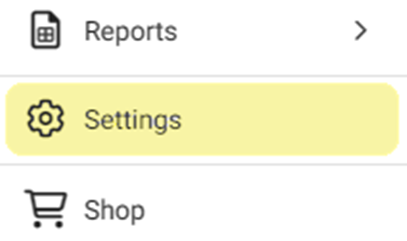
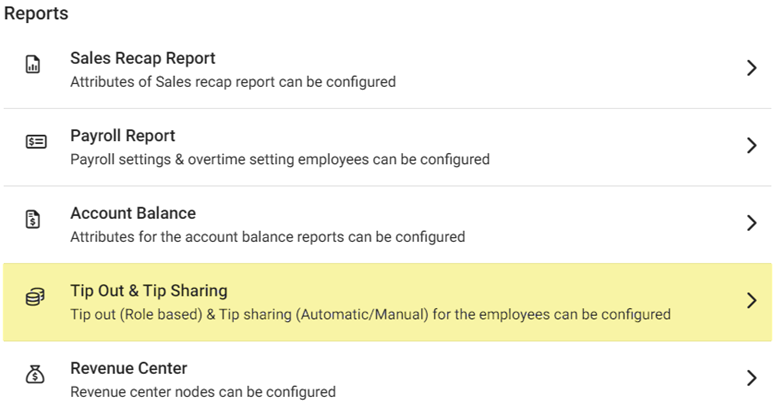
the left-side, select Settings. On the Settings page, under Reports select Tip Out & Tip Sharing.
The
Tip Out & Tip Sharing page contains 2 tabs: Tip Outs and Tip
Sharing.
Tip Outs
Tip Sharing
Tip Outs
Establish
the Tip Out policy for your Store/Restaurant
- Tip Out - If enabled (set to YES), then Tip Out functionality will be enabled for your Store and subsequent toggles will appear.
- Tip out based on percentage – Select whether the employee tip out will be paid from the percentage of Sales or Tips.
- Tip Share Per Hour – Select whether tip out sharing will be based on clock-in hours. If YES, the + NEW TIP OUT button will be clickable.
- + New Tip Out – When the button is clicked, the New Tip Out pane appears.
- TipOut Name – (Mandatory) Enter a name for the tip out. It can’t be greater than 25 characters.
- Role From – Select the role in the dropdown that that the tip out will be shared from (who the original tip was shared to). Only 1 role can be selected.
- Role To – Select the role of the employee responsible for the service. Only 1 role can be selected. Note: A Role From selection will not appear in the Role To options.
- Select Departments – Select one or more (or Select All) departments. All departments registered with your account will appear as dropdown choices.
- Percentage – Enter the percentage amount (or use ▲/▼ to increase/decrease the value by 1) of tip out to the employee. The value cannot be higher than 100.
- When ready to create the new Tip Out, click Save at the bottom-right.
- You are returned to the Tip Outs tab where the confirmation message ‘Tip Out/Tip Sharing Saved Successfully’ appears.
- Click Cancel to discard entered information and cancel the creation of the new tip out.
- The newly created Tip Out will appear as a row on the below table.
- Tip Out & Tip Sharing Table – Appears below the toggles and + Tip Out button. It contains a listing of all the Tip Outs created as rows with the corresponding fields: Name, Role From/To, Departments, and Percentage.
- Delete – Under the Actions column, select the Delete (Trash Can) button at the end of a Tip Out row to delete it. The Delete pop-up appears. Select Delete to confirm deletion or Cancel / X Close to keep it.
Tip Sharing
Establish
the Tip Sharing policy for your Store / Restaurant
- Manual Tip Sharing – A toggle for sharing the collected Net Tip. If Enabled (YES), select one or more Roles (or Select All) that the overall tip will be manually uniformly shared with.
- If Disabled (NO), the overall tip will not be manually shared.
- Automatic Tip Sharing – A toggle for sharing the collected Net Tip. If Enabled (YES), select one or more Roles (or Select All) that the overall tip will be automatically shared with.
- Note: The Manual and Automatic toggles cannot both be Enabled at the same time.
- If Disabled (NO), the overall tips will not be automatically shared.
- Tip Charge Deduction Before Tip Share – A toggle for deducting the tip charge before the tip is shared with the employee(s). If Enabled (YES), the charge will be deducted. If Disabled (NO), it will not be deducted.
- Include Below In Tip Share – Select the checkboxes of the tip types to be included in tip sharing: Online Pickup, Declared Cash, Gratuity, and Driver Compensation.
- When ready, click Save at the upper-right. The Tip Sharing updates are saved and the ‘Tip out/ Tip Sharing Updated Successfully’ confirmation message appears.