Back Office: Dual Price Payment Settings
Back Office Admin
Navigation: Accounts > Stores. Select the Store you want to update.
Under Settings, for Pricing Options ensure Dual Price is enabled. The Surcharge and Service Charge toggles will automatically be disabled and grayed out (cannot be enabled).
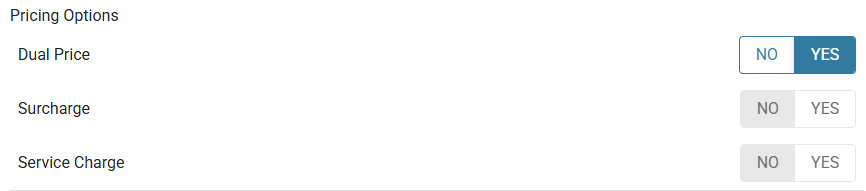
Back Office
Navigation: Log into BO, and for your Store select Settings > Payments > Payment Settings
- On the Payment Settings page, ensure the Dual Price toggle is enabled (set to YES).
- On the Dual Price Disclaimer pop-up that appears: select the Accept and Proceed box then click Accept.
- After enabling the toggle:
- Enter the Name of the Dual Price reward for paying via cash as it will appear on the receipt (maximum of 25 characters).
- Enter the Dual Price Percentage (up to 3 decimal places) to be deducted from the total.
- Enter the Dual Price Tip Percentage.
Bulk Updating Menu Item Prices for Dual Price
Navigation: Log into BO and for your Store select Product/Items > Bulk Updates
You can increase or decrease the Menu Item Price in the Bulk Update section. Example: Performing a Bulk Update increasing the Price for Pizza by 10%.
- Select Pizza then click Bulk Change.
- On the Bulk Change pane, select Increase then Percentage. Click Change at the bottom-right.
- You are returned to the Bulk Change page, where the Change To field for all Serving Sizes is filled in based on the applied change, with the Change in price reflected (+ and in green indicates an increase).
Before vs After Bulk Update
Notes
- Dual Price applies only to Cash payments.
- Gratuity will not apply to Dual Price.
- The Dual Price field will appear only when the Show Dual Price toggle is enabled in Admin.