Back Office: Surcharge Payment Settings
Back Office Admin
Navigation: Accounts > Stores. Select the Store you want to update.
Under Settings, for Pricing Options ensure Surcharge is enabled. The Dual Price and Service Charge toggles will automatically be disabled and grayed out (cannot be enabled).
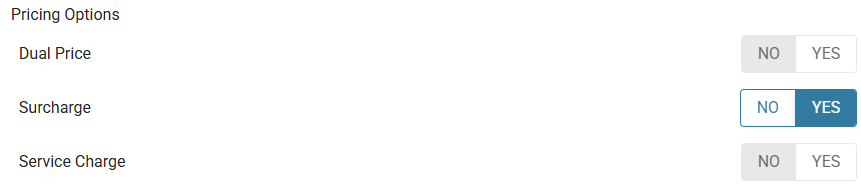
Back Office
Navigation: For your Store, select Settings > Payments > Payment Settings
When the Surcharge toggle is enabled:
- The Surcharge and Regulations Compliance pop-up appears. It contains the following message, followed by links to resources and a checkbox to Accept and Proceed:
- As your payments partner, we strive to give you the tools to help your business succeed. To limit the risk of fines, we suggest that you review your system configurations for compliance with applicable surcharging laws and network rules. You should consult your professional advisor for complete and up-to-date information and advice on surcharging.
- When the Accept and proceed checkbox is selected: the Surcharge Guide pop-up appears, which contains instructions on implementing a Surcharge. Click the '... read and understand' checkbox then Accept.
- You are returned to the main Payment Settings page where you can set your Surcharge settings. The Guide will be available whenever you need more clarification on Surcharge settings.
- Enter the Fee Name (Mandatory, maximum of 25 characters). Displayed on the Receipt.
- Enter the Surcharge Name (Mandatory, maximum of 25 characters). Displayed on the POS/Receipt.
- Enter the Surcharge Percentage (cannot exceed 100%). This is used for calculating the Discount in the POS.
- Enter the Surcharge Tip Percentage.
- Select whether to Apply the Surcharge Before any Tax.
- When ready, click Save at the upper-right. All changes made will be applied to the store.
To Exempt a Payment Method from a Surcharge
On the Settings page:
- Under Payments click Payment Method.
- Click + Payment Method to create a new Payment Method (or click the pencil (edit) icon on an existing Payment Method). The New/Update Payment Method pane appears.
- On the Payment Method pane: to exempt the Payment Method from the Surcharge, ensure that Exempt Surcharge is Enabled (set to YES).
- Click Save / Update to confirm.
- Note: When you enable Surcharge, it’s mandatory to have 2 Payment Methods available.
Credit and Debit Transactions
If a Payment Type (Credit Card, Side CC, etc.) has a Debit toggle available which is set to YES (Enabled) to indicate it’s Debit, then the Exempt Surcharge toggle will automatically be set to YES (Enabled) and will be greyed out (cannot be Disabled). Any Payment Type that is identified as Debit will ALWAYS be Exempt from Surcharge.
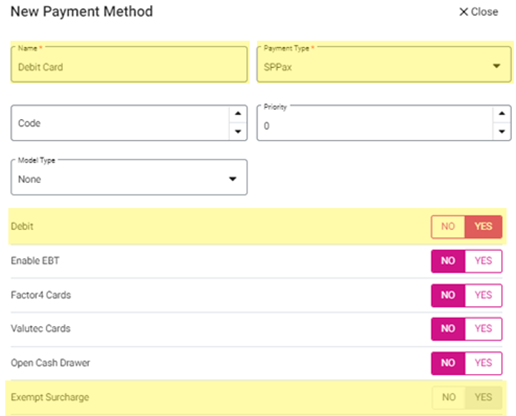
In POS: when selecting a Payment Type is set as Debit (and thus Exempt), the Surcharge field will always be set to $0.00.
When the above checkbox is selected then Accept is clicked, then the Surcharge details will be provided (and only then can a Surcharge be set up). Here, a log will be captured for this change, including the Date and Time.
- If Cancel or Close is clicked, no log will be captured.
- Note: When an existing Customer use this Surcharge for the first time, the log will also apply.
- This will apply for all Customers and users.