Homebase Integration
Step 1 - Essential Fields in BO and Homebase
- Fields to be filled out in Back Office User Management and Homebase Settings.
- During self-boarding on the Homebase portal, initiate the process by clicking the link to request API access. Once the request is submitted, Homebase will generate the required API credentials. After the credentials are created, navigate to Homebase Settings → API Access (the last option in the menu) to retrieve them. Finally, copy the generated API credentials and paste them into the Linga Back Office (BO) to complete the setup
- Make sure all Users under BO User Management (User Management > Users) have a First Name, Last Name, Email Id, and User Roles.
- Break timings must be the same in all of Back Office, POS and Homebase. Mismatch in Break definitions between BO, POS and Homebase will result in sync failures.
- To create a break in Homebase, see the below steps (and included screenshots):
- Select Settings.
- Then select Breaks & Compliance.
- On the Breaks & Compliance page, click Add New Break.
Step 2 - Subscribe and Configure in Back Office
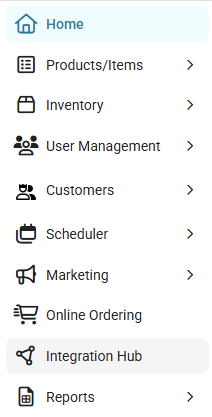
Navigation: Log into Back Office. On the left-side pane, select
Home then Integration
Hub
- On the Integration Hub page, select Browse and Subscribe Integrations.
- Under the Payroll section: for Homebase select ADD.
- The Disclaimer page appears. After selecting the Terms and Conditions box at the bottom left, click Confirm at the upper right. After that, you are redirected to the Configure and Manage Integrations page.
- On the Current Integrations page (Integration Hub > Configure and Manage Integrations): navigate to the row with Homebase, then under the right-side Actions column select the settings (gear) icon.
- The Homebase page shows two tabs: Settings and Action.
- Under the Settings tab:
- Enter the Homebase API Key (provided by Homebase), which may be common for all Stores on your Account.
- Enter the Location UUID (provided by Homebase), which is unique for the Store. Once a Location UUID is used for a Store, it can't be used for another Store.
- Enter the Notification Email ID which will receive notifications of Time Clock Events and sync failures.
- Under the Action tab:
- You will find the option to synchronize Users with Homebase by clicking the Sync Users button. This must be performed for the first time right after the configuration and every time a new user is added via User Management in Back Office.
- If the sync completes successfully, the info message 'User synced successfully' will appear at the top right side of the page.
- If failure occurs while performing user sync, the info message 'Sync user failed' will appear at the top right side of the page.
- Similarly in the Action tab, you will find the option to synchronize Shifts with Homebase by clicking the Sync Shifts button. It should only be clicked when there is a change in Shift configuration in Homebase in the middle of the day. It is not required to click if Shift detail is not changed from the previous day.
- Click Sync Shifts to fetch the latest scheduled Shift details from Homebase to ensure that accurate Roles are captured in Homebase Time Clock Events sync.
- If any updates are made to the Shift in the middle of a day, make sure to click Sync Shifts to avoid sending incorrect Roles in time entry.
- If the sync completes successfully, the message 'Shifts synced successfully' will appear at the top-right of the page.
- If failure occurs while performing Sync Shifts, the message 'Sync Shifts failed' will appear at the top-right of the page.
- If you click Cancel, you are redirected to the Current Integrations page.
Notes
- If a user is in Linga but not in Homebase, clicking Sync Users will create the user in Homebase.
- If a user is present in Homebase but not in Linga, that user needs to be manually created in Linga under Back Office User Management.
- If a user exists in both Linga and Homebase, the system will map the users.
- When you update a user's information in Linga - such as their First Name, Last Name, Email Address, or Role - click Sync Users to update the User in Homebase.
- Upon completion of user synchronization, the data sync for Clock In & Out, as well as Break In & Out, are automatically transmitted to Homebase.
- If a role-based Shift hasn’t been created in Homebase but the user clocks in POS, then Homebase will record it under the default Role.
- To ensure Clock events are correctly recorded in Homebase for a specific Role, shifts must be defined in Homebase with that role assigned. When a user clocks in from the POS, the integration attempts to match the clock-in event with a shift in Homebase that has the same role.
- If the Role in current Homebase shift and POS clocked-in Role don't match, the default Role will be captured in Homebase. Refer to the example below to understand how role-based clock in works with a homebase.
- All timecard activities from the Homebase side (including early/late clock-ins, clock-outs, and unscheduled shifts for the same business day) sync accurately with Linga time events. Manager-edited entries (clock-in, break in, break-out, clock-out) will reflect in Linga without discrepancies by clicking the Sync Shifts in the Linga Integration Hub Settings tab, appear in Payroll Reports, and continue syncing correctly after editing to keep data integrity.
- Editing a timecard for the previous day can be performed either in Linga Back Office or Homebase. The sync option supports same-day processing only.
- All actions performed within the Integration Hub for Homebase are automatically recorded and reflected in the Back Office Audit Log reports.
Linga User - Role | Homebase User - Role | Homebase Shifts | Scenarios | POS Role Used in Clock In | Roles Recorded in Homebase |
User A (Admin) | User A - Admin | Not defined | Clock in with no Shift defined | Admin | Admin (default Role) |
User B (Bartender) | User B - Bartender | Bartender - 1pm to 5pm | Clock in with correct Role | Bartender | Bartender |
User C (Cashier, Driver) | User C - Cashier | Cashier - 1pm to 5pm | Clock in with incorrect Role | Driver | Cashier (default Role) |
Limitations
- Homebase’s API currently supports only one Role per Employee at the time of creation. During sync, only the user’s primary (first) Role will be sent to Homebase. If the user needs to have additional Roles in Homebase, they must be manually added in the Homebase system after the sync is complete.
- If there is any failure in the clock and break events data sync, an email will be triggered to the email ID configured in the settings tab
- The email from Linga rOS (autoemail@email.lingapos.com) contains information about the failed events, along with the user's Email ID and the Store ID, as well as the error message. Sample email contents mentioned below:
- Error 401 ('The Authorization header supplied is invalid') typically indicates that integration is incorrectly configured in the back office. You may need to check your API key, location UUID.
- Error 422 ('Please add break clock-in time to save timecard') suggests that a required field (Clock events) is missing when attempting to save a timecard. You may need to verify that all necessary timeclock entries, including break start and end times, are correctly recorded.
- After receiving the email, you must manually add the Clock Events in Homebase for the failed event (example below):
- Without updating the failed time events in Home Base, the next clock events for the user will not be updated in Homebase.
- If a User has not taken a Break configured in BO due to busy business hours and even the Manager creates a break in POS, then the user takes this Break (this break created in POS will not be synched with Homebase because, this break was an ad-hoc break created in POS and the same is not created in Homebase).
- Any manual updates like Force Punch In & Out in Back Office and adding Time Cards in POS will not be updated in Homebase due to API limitation.
- All changes must be made on Homebase and synchronized with the Linga Integration Hub using Sync Shifts. The updated data will be reflected in Linga POS and Back Office reports.
- If the POS is offline and an Employee performs a time event, then once the POS comes back online the time events will not sync with Homebase.