POS: Check Options - Tax Exempt
To change a Check to become Tax Exempt:
- Tap on the Option
button, then on the Check Options pop-up select the Tax Exempt option.
- After tapping the Tax Exempt option, the respective Check will be exempted from Tax.
Note:
Only Employees with the proper Role and Permission settings have access to apply Tax Exempt.
Tax Exempt Reason & Reference ID Inclusion in POS
Background in Back Office
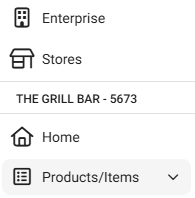
Navigation: Log into BO and select a Store, then select Products/Items > Reasons
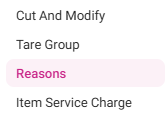
On the Reasons page, you can define Reasons for Tax Exempt.
To add a new Reason:
- Click the + New Reason button at the upper-right of the Reasons page (or click the corresponding pencil under Actions). The New/Update Reason pane appears:
- Select the Reason Type for the Tax Exemption.
- Provide the Reason for the New Reason.
- Maximum of 25 characters.
Implementation in POS
- Select Tax Exempt from the Check Option pop-up.
- The Tax Exempt pop-up appears, which displays the Reason(s) created in Back Office.
- Select the Reason then the Tax will be removed from POS.
- If the Tax Exempt option is de-selected, then the Tax Exempt is removed and the 'Tax Exempt Removed
Successfully' pop-up appears.
- The Tax Exempt ID pop-up will appear on the Tax Exempt screen.
Background in Back Office
Navigation: Log into BO and select a Store, then select Settings
> General Settings
Require Tax ID on Exempt
Transaction
If the toggle is enabled (Yes), the system will prompt a Tax Exempt ID box to perform
a tax exemption.
If the toggle is disabled (No), it will not prompt.
Implementation in POS
If you select the Tax Exempt option from the Check Options screen:
Tax Exempt Reference ID Toggle - ENABLED
- If the Require Tax ID on Exempt Transaction option is enabled (set as YES), then when selecting the Tax Exempt option, the Reason(s) created in BO will be displayed.
- After selecting a Reason: a pop-up for entering the Tax-Exempt ID will appear, with Cancel and Ok options.
- After providing the Tax-Exempt ID and selecting Ok, the pop-up will be closed and the respective Check will be exempted from Tax.
- Upon clicking Cancel, the pop-up will be closed.
Tax Exempt Reference ID Toggle - DISABLED
When the Tax Exempt Reference ID toggle is disabled (No), the Tax Exempt ID pop-up won't appear in POS.
Do
Not Reset Check Numbers
- Navigate to the Settings page and set the Do Not Reset the Check Number's Daily option as Yes.
- The Check Numbers will not reset with the end of the day.
- If No, It will reset end of the day. Changes will reflect when you sign out then sign-in again.