Retail Back Office: Customer Display Screen (CDS) Addon Settings
Navigation: Sign
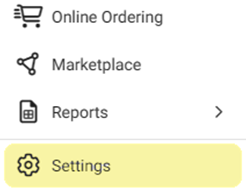
into the Back Office and select a Store. On the left-side Navigation Panel, click Settings. On the Settings page, under Addons click Customer Display System (CDS).
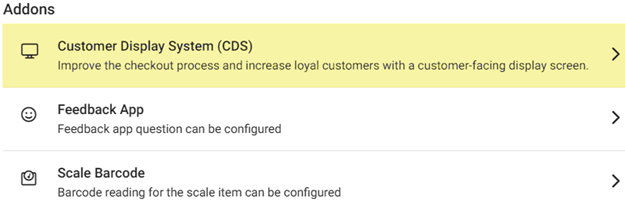
The Customer Display System (CDS) settings screen enables you to customize the look, theme and text that appears on the CDS.
Show
Advertisement
toggle – If Enabled (YES), the app will display ads in CDS. If Disabled
(NO), ads will not appear on the CDS.

Customer
Profile
Toggle – If Enabled (YES), the customer profile will display in
CDS. If Disabled (NO), the customer profile will not appear on the CDS.

Choose
Theme – Select the Theme from the dropdown (Dark or Light).
Determines how the CDS POS will appear to the
customer.

Discount
Text – Enter a message meant as a reminder of
discounts to the customer. The message cannot exceed 160 characters.

Get
Number
Text – Enter a message meant for gathering customer account info. The message cannot exceed 160 characters.

Loyalty
Text – Enter a message meant to remind the customer of a loyalty account. The message cannot exceed 160 characters.

When ready, click Save at
the upper-right (across from the CDS title). The confirmation banner appears and the Save button turns grey.

If no updates have been made, the button will be greyed out and unable to be clicked.
Related Articles
Customer Display Screen (CDS)
Sync Main and Display iPad - Download the “Linga Customer Display” Application from the Apple App Store onto the iPad that will be used for the customer display. - Ensure the displa iPad is on the same network as your cashier ...
Customer Display (CDS)
Note: This information is available in a Word document and PDF file at the bottom of the page. How to setup the Customer Display: Make sure the “Linga CDS” application is launched on iPad that will be used for Customer Display On the Service iPad ...
Back Office: Customer Display Screen (CDS) Addon Settings
Navigation: Sign into the Back Office and select a Store. On the left-side Navigation Panel, click Settings. The Settings page appears. Under Addons click Customer Display System (CDS). The Customer Display System (CDS) screen display setting options ...
Set iPad to Kiosk Mode (CDS)
Kiosk mode will relaunch the Customer Display Screen (CDS) in the event that it crashes. The Kiosk setting will also prevent customers from hitting the home or power button on the iPad. 1. In the iPad settings navigate to General -> Accessibility. ...
Store Settings
Settings > Store Store Information- Here is all the info for your store. You must add address and then click the Get my location button to fill in the Latitude\Longitude. Settings- - Log off after each sale- Once sale is tendered it will ...