Retail Back Office: Enterprise - Push/Pull Data
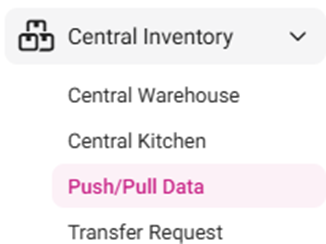
Navigation: Sign into the Back Office. On the left-side, select Enterprise. On the Enterprise page, select Central Inventory then Push/Pull
Data.
The Push/Pull Data screen appears, where data
can be pulled from one Store/Central Inventory/Central Warehouse to be pushed
to another.
Store Type
- Select the Type – Restaurant or Retail
Pull Data From Type
Where the data will be pulled from:
- Select the Type from the dropdown.
- If the General Type was Restaurant, the options will be Stores, Central WareHouse, or Central Kitchen.
- If the General Type was Retail, the options will be Stores or Central WareHouse.
- Select the Store from the dropdown – options will be based on the adjacent Type selection.
- Tip: Find your desired Store more quickly by typing the name in the Search bar.
Push Data To Type
Where the data will be pushed to:
- Select the Type from the dropdown.
- If the Store Type was Restaurant, the options will be Stores, Central WareHouse, or Central Kitchen.
- If the Store Type was Retail, the options will be Stores or Central WareHouse.
- Select the Store from the dropdown – options will be based on the adjacent Type selection.
- Tip: Find your desired Store more quickly by typing he name in the Search bar.
- Note: The Store selection for Pull Data From cannot be the same as Push Data To.
Completing Configuration
- When all 3 selections have been made, select Pull Menu Configuration at the upper-right.
- After a moment to load (spinning circle on screen) the data will be pulled from the Pull Data From selection and pushed to the Push Data To selection, and the ‘Data Pulled Successfully’ confirmation banner appears.