Retail Back Office: Inventory - Sync Inventory
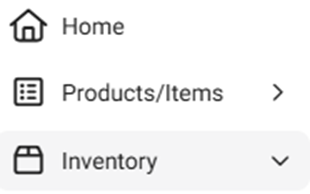
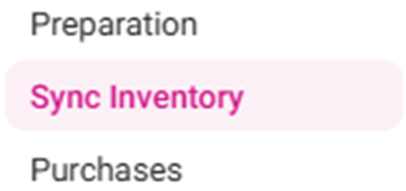
Navigation: Sign into the Back Office for your Retail Store, then select Inventory > Sync Inventory.
The Sync Inventory page appears, highlighting the benefits available to a fully synced inventory: Create purchase orders, Receive low stock email alerts, Calculate your cogs, Theoretical vs actual inventory, Track wastage, theft and spoilage and Know your item cost details.
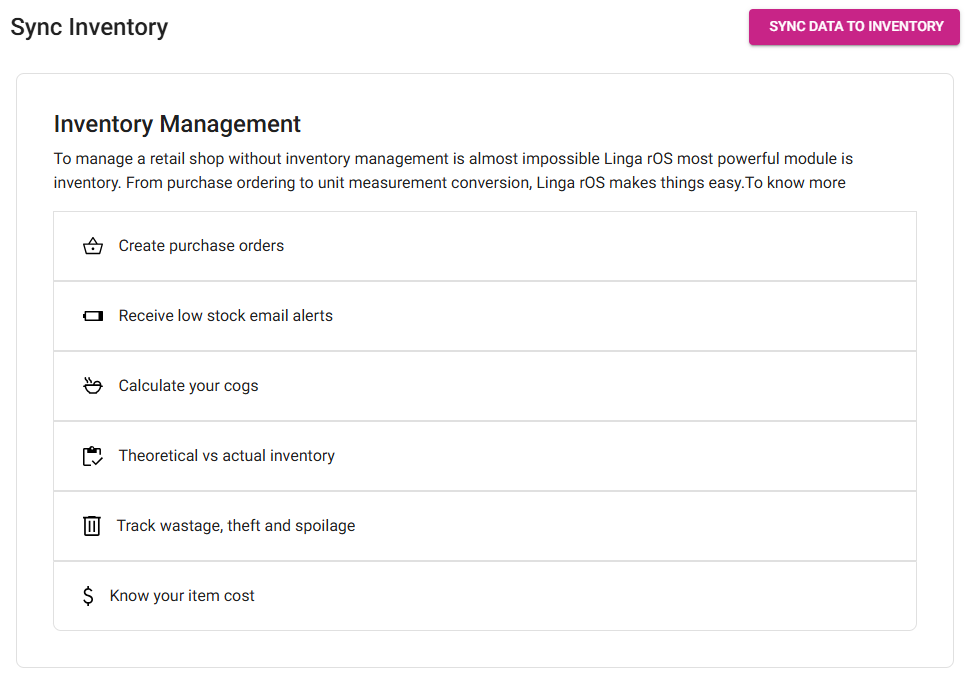
- Synchronize your data by clicking Sync Data To Inventory at the upper-right.
- The ‘Data syncing to inventory’ banner appears for a moment
- Followed by the ‘Stay Calm, Authenticating’ banner
- Then the syncing will complete.
- If you made any changes to the inventory and don’t see those changes in another Inventory tab, please sync the data manually and it will reflect.