Retail Back Office: Matrix Report Inventory Settings
Navigation: Sign into the Back Office for your Retail Store. Click Settings, then on the Settings page under Inventory select Matrix Report Settings.
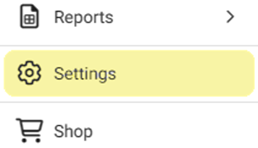
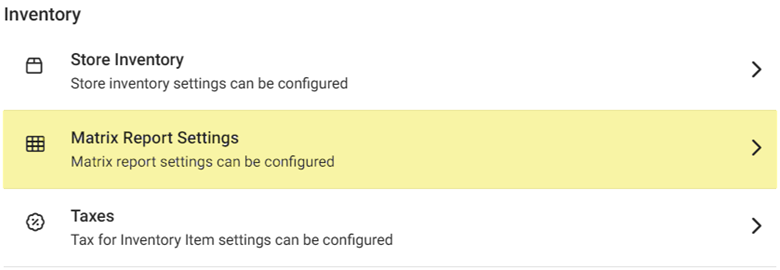
On the Matrix Report screen:
Profit
Threshold Amount – (Mandatory) Enter the threshold value Amount for
the profit.
The profit category is Low if it falls anywhere
between 0 and the entered Amount. Anything above the entered Amount
is High.

Popularity
Threshold % – (Mandatory) Enter threshold popularity Percentage value.
The profit category is Low if it falls anywhere
between 0 and the entered Amount. Anything above the entered Amount
is High.

Click
Update to save the updated entered threshold information. The
confirmation banner ‘Matrix Report Settings Updated Successfully’ appears.

Related Articles
Back Office: Inventory Reports
Log into the Back Office and select a Store. Under Reports > Inventory Reports. On the Inventory Reports dashboard, select a tab. Master Stock Purchased Item Consumption Log Compare Inventory Count Sheet COGS Adjust Inventory Inventory Item History ...
Reatil Back Office: Inventory Reports
Navigation: Log into the Back Office for your Retail Store, then select Reports > Inventory Reports. The Inventory Reports page is organized into multiple tabs: Master Stock Purchased Item Consumption Log Compare Inventory Count Sheet COGS Adjust ...
Back Office: Matrix Report Inventory Settings
Sign into the Back Office. On the left-side Navigation Panel, click Settings. The Settings page appears. Under Inventory click Matrix Report Settings. The Matrix Report screen appears. Profit Threshold Amount – (Mandatory) Enter the threshold value ...
Build Version 2.1.22 - Inventory Release
Back office: Inventory Enhancements: Inventory Phase 2: Inventory subcategory is included as like in Products/Items. Subcategory filter option is included in Inventory reports. Default filter option “Adjust Inventory” is added in Adjust Inventory ...
Retail Back Office: Store Inventory Settings
Navigation: Sign into the Back Office for your Retail Store. Click Settings, then on the Settings page under Inventory select Store Inventory. The Store Inventory screen displays settings for the store's inventory tracking and notifications. At the ...