Retail Back Office: Payment Till Settings
Navigation: Sign
into the Back Office for your Retail Store. On the left-side Navigation Panel, click Settings. On the Settings page, under Payments select Till Settings.
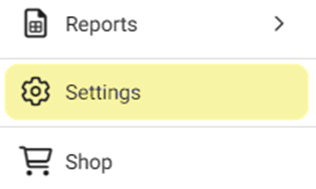
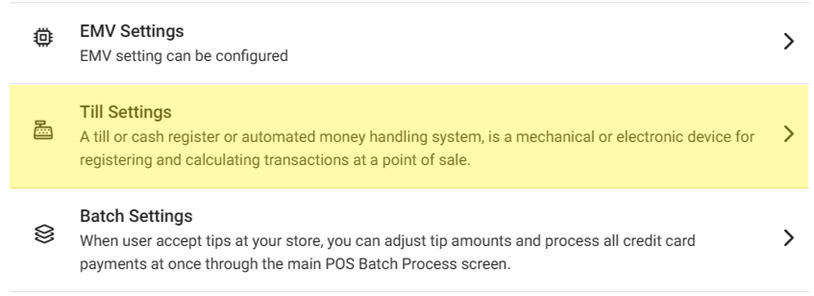
On
the Till Settings page, select one of the tabs:
Till Settings
Denominations
Close Till
Till Settings
- Automatic Global Till – If Enabled (YES), the POS system will automatically open the overall till in it. Enter the Global Till Opening Balance in the textbox provided (not mandatory). This is the amount that the till will automatically open with.
- If disabled (NO), the opening balance will not be available.
- Force Cash Out at Clock Out – If Enabled (YES), an employee must close the open cash out and till before punching out in POS. If not, then the pop-up will be displayed in POS.
- If disabled (NO), an employee can punch out in POS when there is open cash out and till.
- Restrict Partial Payments – If Enabled (YES), an employee won't be allowed to take partial payments from different tills (applicable to Global Till only).
- If disabled (NO), the user will allow to take partial payments from different tills.
- Bank Deposit – If Enabled (YES), the Bank Deposit Details can be provided. If + Bank Deposit is clicked, the New Bank Deposit pane appears.
- On the New Bank Deposit pane:
- Enter the Deposit Amount (mandatory).
- Enter the Business Date (mandatory, the Date that the Amount was deposited).
- Save – The SAVE button at the bottom-right. If clicked, any changes will be saved. Available only when both mandatory fields are filled.
- Close - The X Close button at the top-right. If clicked, the pane is closed and you’re returned to the Till Settings screen.
- When satisfied with all Till Settings tab settings, click Save at the upper-right. The button will turn grey and the 'Till Settings Updated Successfully' confirmation appears.
Denominations
Denominations are button tiles that allow you to enter the Till Amount in the Quantity of bills ($1, $5, etc.) rather than entering the total Amount.
Adding a Denomination
- Click + Denomination. The New Denomination pane appears.
- On the New Denomination pane:
- Enter the Display Name.
- Tip: Ensure it is specific (what will be used when you search for a Denomination).
- Enter the Amount (in local currency).
- Click Save at the bottom right. You’re returned to the Denominations tab, where the newly-created Denomination appears as a row in the table, and the banner 'Denomination Saved Successfully' appears at the upper-right.
Deleting
A Denomination
- Under the Actions column, click the corresponding Trash Can icon of the Denomination you want to Delete.
- On the Delete pop-up, click Delete to confirm deletion.
- If not, click Cancel or X Close.
- If Delete is clicked, you’re returned to the Denominations tab and the banner 'Denomination Deleted Successfully' appears.
Close Till
- Under the Close Till tab, identify the Till you want to close, then click Close.
- A Reminder pop-up appears asking you to confirm. Click YES to confirm closing.
- Otherwise click NO or X Close
- The pop-up closes, the Till is closed and the 'Till Closed Successfully' confirmation banner appears.