Retail Back Office: POS Custom URL Application Settings
Navigation: Sign
into the Back Office for your Retail Store. On
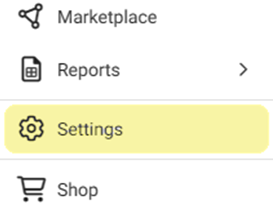
the left-side Navigation Panel, click Settings. On the Settings page, under Application click POS Custom URLs
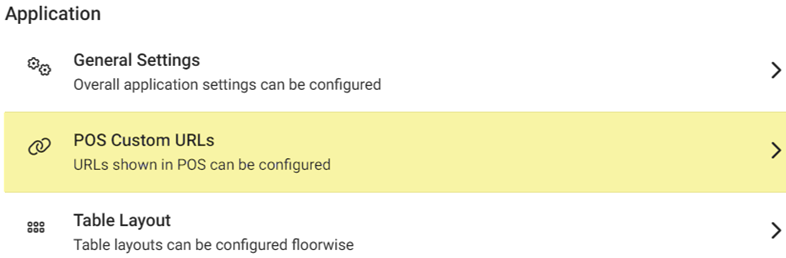
- POS Access URL – Toggle to Enabled (YES [Default]) to add URL Links (up to 10 can be added). If Disabled (NO), all created links will be deactivated.
Add or Edit a Custom URL
- Click + URL Link to create a new URL Link – or click the pencil icon to update an existing URL Link. Up to 10 URLs can be added per Store.
- The POS Custom URL pane appears, with fields for Name and URL, and a process for uploading an image to represent the URL:
- Enter the Name (mandatory) maximum of 25 characters [can include numbers and spaces]).
- Enter the URL (mandatory). It must be a valid URL [link to a currently existing website] and cannot be identical to another currently existing Custom URL – otherwise if Save/Update is clicked the message URL already exists appears).
- Image Upload (mandatory) – Click the Upload New Image
button. The file explorer pop-up window appears. Find the image to represent the URL, then double-click it - or single-click then click Open.
- Only JPG or PNG files are accepted. The maximum file size is 2MB, with recommended dimensions of 400x400.
- When all updates are complete, click Save or Update at the bottom-right. If successful, you are returned to the main POS Custom URLs
page and the banner message POS Custom URL Saved Successfully appears at the top-right. - Click Cancel or X Close at to cancel any pending changes and return to the POS Custom URLs screen.
Delete a Custom URL
- Identify the Custom URL to delete, then click the corresponding Trash Can icon.
- On the Delete pop-up that appears: select YES to delete the existing URL Link.
- If No or X Close is select, you are returned to the main POS Custom URLs screen and the Custom URL remains.
- You are returned to the POS Custom URLs page with the Custom URL is removed, and the POS Custom URL Inactivated Successfully confirmation message appears.