Retail Back Office: Revenue Center Report Settings
Navigation: Sign
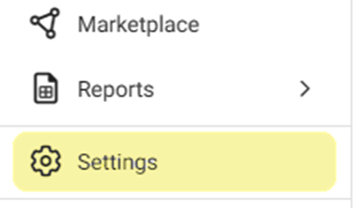
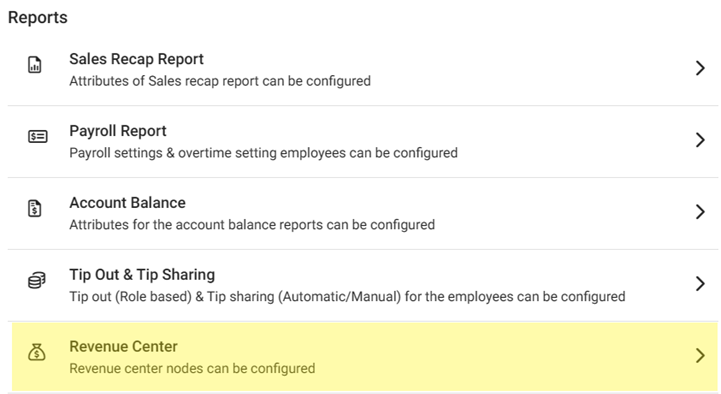
into the Back Office for your Retail Store. On the left-side Navigation Panel, click Settings. On the Settings page, under Reports click Revenue Center.
Create or Update a Revenue Center
- Click + New Revenue Center to create a new one, or click the corresponding pencil Icon to update an existing one or click the Trash Can to delete it.
- On the New (or Update) Revenue Center pane:
- Enter the Name of the Revenue Center.
- Select the Node(s) attached to the Center on the dropdown.
- When complete, click Save (or Update) at the bottom-right of the pane.
- You are returned to the main Revenue Center page where a confirmation banner appears at the upper-right. If a Revenue Center was created, it will appear as a new row in the table, with the entered Name and selected Nodes.
Delete a Revenue Center
- Identify the Center to delete, then under the Actions column click the corresponding trash can icon.
- On the Delete pop-up that appears, click Delete to confirm deleting the Center.
- Select Cancel / X Close to return to the Revenue Center page and keep the Center.
- You are returned to the Revenue Center page, where the Center has been deleted and the confirmation banner appears at the upper-right.