Retail Back Office: Store Notifications Settings
Navigation: Sign
into the Back Office for your Retail Store. On
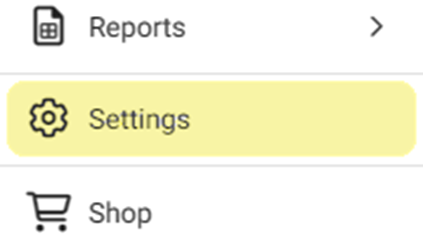
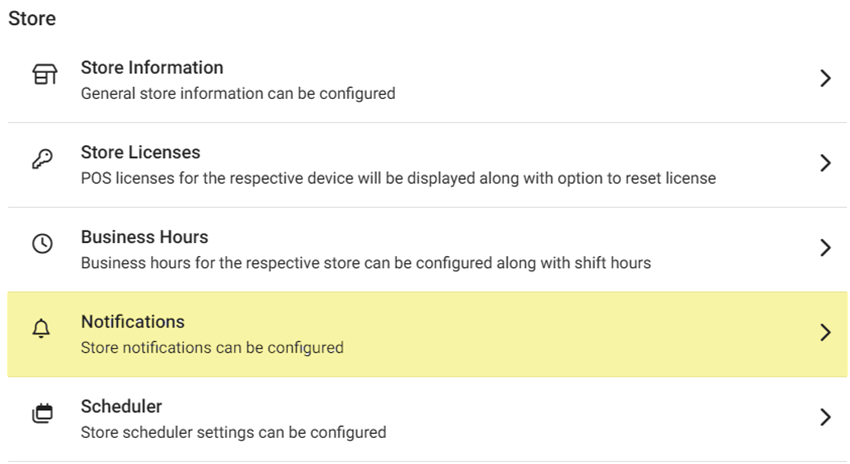
the left-side Navigation Panel, click Settings. On the Settings page, under Store click Notifications.
On the Notifications
screen: there is a YES/NO toggle for the following options:
- For toggles that include a Notify By option, you can select the Text and Email checkboxes, then enter the corresponding Phone Number and Email that the notification will be sent to.
- Discount: If Enabled (YES), enter the discount threshold amount in the Discount Limit field (number values only). with Notify By options.
- Tip: you can enter multiple Phone Numbers and Email addresses by separating each with a comma ( , )
- Void: If Enabled (YES), enter the void threshold amount in the Void Limit field (number values only). with Notify By options.
- Tip: you can enter multiple Phone Numbers and Email addresses by separating each with a comma ( , )
- Max No Cash Drawer Accessed For No Sale: If Enabled (YES), enter the limit amount in the Limit field (numeric values only). with Notify By options.
- Time
Clock: If Enabled (YES), the Time Clock notification will be
sent to the registered Email / Number. with Notify By options.
- Daily
KPI: If Enabled (YES), the end of day KPI notification will be sent to the
registered Email/Number. with Notify By options.
- End Of
the Day Alert: If Enabled (YES), the End Of the Day Alert
notification will be sent to the registered Email/Number, with Notify By options.
- Wait List:
If Enabled (YES), enter the message to send to the registered Number in
the Custom Text field. with the Notify By option.
- Sale
Recap Report: If Enabled (YES), the Sale Recap Report will be
sent to the registered Email, with the Notify By option.
One Page PDF: If Enabled (YES), One page PDF will be sent to the registered Email, with the Notify By option.
- When all updates have been made, click SAVE at the upper-right.