Retail POS: Operation - Support

Retail POS: Operation - Support


In POS, select Operation then Support. The Support Operation screen appears. It is broken down by the Download and Status tabs.
A screenshot of a computer

Description automatically generated


Download Tab

The latest version of the POS is available for download via the Download button.
A screenshot of a computer

AI-generated content may be incorrect.
 
If you click the Download button, the 'Reload site?' pop-up appears which indicates that there are unsaved changes to the POS, which could be lost if the site is reloaded. You are provided with two options to proceed:
  1. Reload - Reload the site and return to the login screen.
  2. Cancel - Cancel the action and remain on the current page.


Status Tab

Online vs Offline

Displays the status of various connectivity and features: with Online marked with green
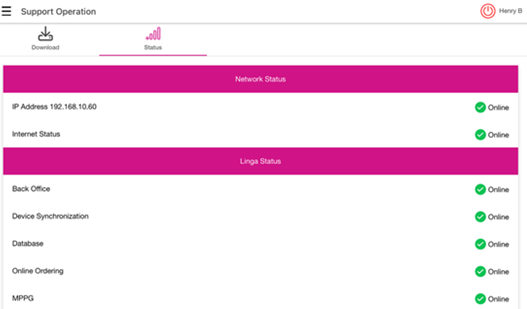


and 
Offline with red
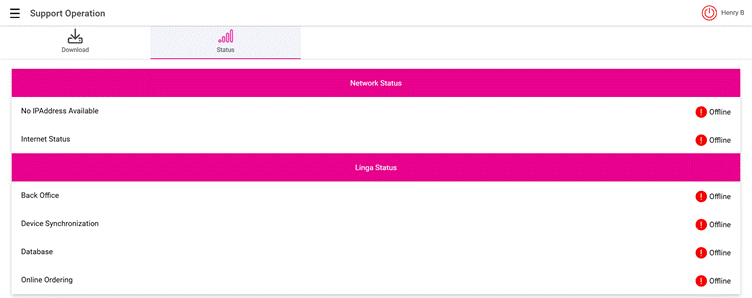
A screenshot of a computer

AI-generated content may be incorrect.

Network Status

  1. Displays the connectivity of the POS based on its IP Address [with number] and Internet Status.

Linga Status

Displays the following features:
  1. Back Office: The status of Back Office connectivity.
  2. Device Synchronization: The status of all devices being synced.
  3. Database: The status of the database's connectivity.
  4. MPPG: The availability of MPPG payment (applies to Android, but not to Web) and will be dynamic based on the Store Settings.
    • Related Articles

    • Retail POS: Operation - POS Settings

      Navigation: Log into POS, then select Operation > POS Settings Note: Only Employees with the proper Role and Permission settings have access to POS Settings. Till Settings This section is used to define the behavior of Till Management. Back Office ...
    • POS: Operation - Support

      The Support Operation screen is broken down into two tabs: Download The Download tab allows you to Download the latest version of the OS. Click Download, and the Download screen appears, with a history of Release Versions available. Status The Status ...
    • Retail POS: Operation - POS

      Under the Operation menu, select POS The main screen appears - with the Void, Sale History, Park Sale, Retrieve Sale, Option, Print, Discover, Cash, Payment, and Log Off options appearing at the bottom.
    • Retail POS: Operation - Print Labels

      Setting Up a Label Printer Back Office Before printing labels in POS, you must first have Label Printers configured in Back Office. Navigation: Log into the Back Office for your Retail Store. Select Settings. Then under Hardware, select Label ...
    • Retail POS: Operation - Close Day

      Introduction Close Day is the last step before ending the Business Day. Note: Only Employees with the proper Role and Permissions settings have access to Close Day. Navigation: Log in to POS, then select Operations > Close Day Or Operation > Till ...