Retail POS: Operation - Till Management (Open Cash Drawer Tab)
The Open Cash Drawer tab is used to open the Cash Drawer.
Note: Only Employees with the proper Role and Permissions settings have access to open the Cash Drawer.
POS Settings
Navigation: Log In POS then select POS Settings
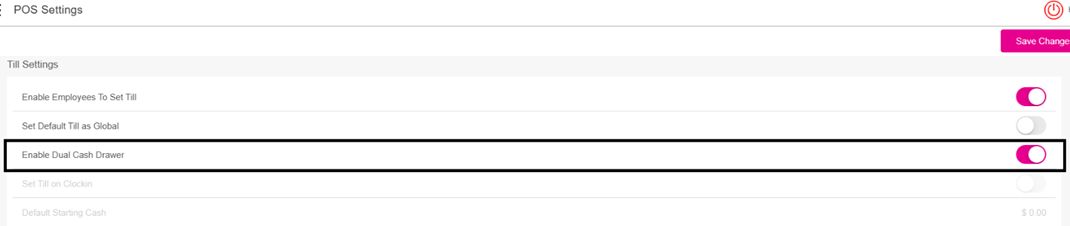
Dual Cash Drawer
For the Enable Dual Cash Drawer toggle, it will be disabled by default. If enabled, the Dual Cash Drawer toggle will be enabled in POS.
Set Till
Navigation: Log In POS then select Operations > Till Management > Till > Set Till
Setting a Till is entering the amount the Till starts with.
- Select Set Till, and the Open Till pop up appears.
- Enter the Denomination and Tip details then press Continue.
- On the Choose Cash Drawer pop-up that appears, select a Drawer.
- After selecting a Cash Drawer, the Active Till screen appears.
Active Till
When a Till is set, the Active Till screen appears
- When the Till Type is a User Till, the Till Balance will be incremented only for the respective Employee who has created the Till in the Device.
- Only one Till can be created per Employee per Store. If the Enable Dual Cash Drawer is enabled in POS Setting, another Employee can log in and create their own Till. If the toggle is disabled, then only one user can create one active till.
- The Enable Dual Cash Drawer functionality does not apply to Global Till.
- If the Global Tip is enabled, a pop-up with the message 'Dual cash enabled in POS settings. Global till is not allowed' appears.
- An Employee selects Drawer 1 then a second Employee set a till. Drawer 1 is greyed out and Drawer 2 becomes available.
- If the second Employee selects Drawer 2, then two active tills appear.
- If the same Employee logs in and attempts to set another till, the pop-up message 'Already Have an active till' appears. If a third user tries to set a till, the same message will appear.
Open Cash Drawer Tab
Navigation: Log into POS, then select Operations > Till Management > Open Cash Drawer
On the Open Cash Drawer screen: select a Drawer. The corresponding Drawer will open.
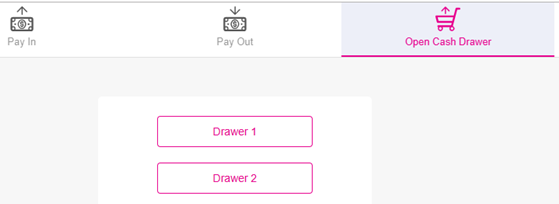
- Upon clicking cancel, the pop-up will be closed.
Note: If a Till has not been created, then Open Cash Drawer can't be used.
Receipt Options Screen
Select Open Cash Drawer, and the Cash Drawer will open automatically. Select a Drawer and the corresponding Drawer will open.
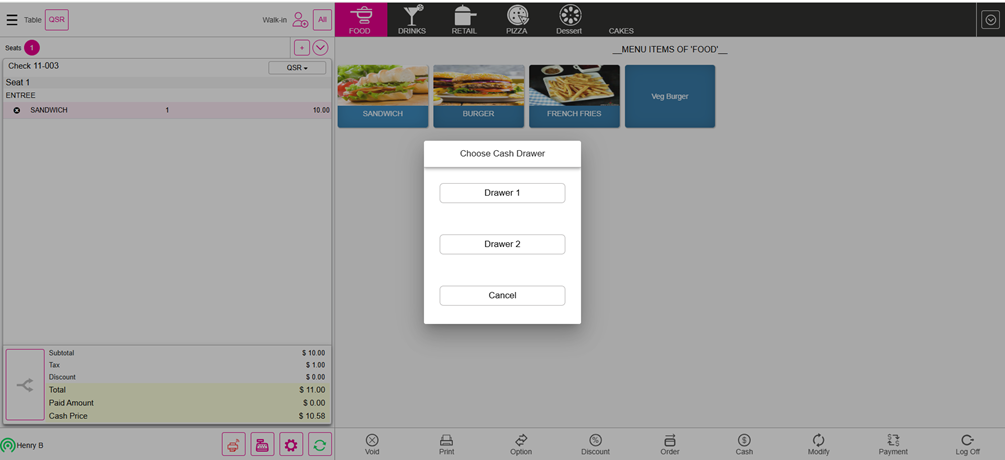
- If Drawer 1 is assigned to User1 and Drawer 2 is assigned to User2, then User3 is allowed to open either Drawer 1 or Drawer 2.
- However, User3 is not allowed to initiate a Sale but can close a Sale using the drawer assigned to them.