Retail POS: Receipt Options - EBT Balance
Back Office Prerequisites
- SPPAX Payment must be configured in under the Payment Settings page in Back Office.
- The EBT toggle must be enabled under the SPPAX Payment configuration section in Back Office.
POS
Add the Retail Item(s) then select Option at the bottom bar.
On the Receipt Option window that appears, select EBT balance.
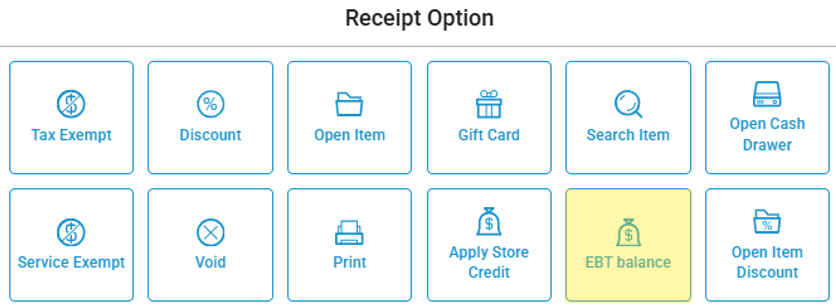
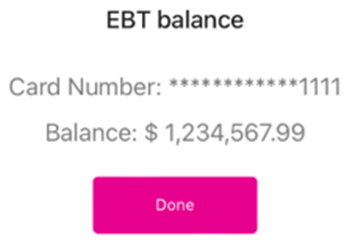
Swipe the card on the connected SPPAX device. If the SPPAX device is connected to the POS, the EBT balance window appears, containing the following information:
The Card Number, displaying the last 4 digits of the card number and the previous digits masked by asterisks (*).
The Balance in pre-set currency.
If no SPPAX device is connected to the POS, the message 'No pax device is connected to this POS' appears.
Click Done, and the pop-up is closed.
Related Articles
Retail POS: Receipt Options - Factor 4
Factor 4 is a Gift Card and a Loyalty Program provider. They empower businesses of all sizes to identify and monetize Customer Loyalty. This article describes the process of integrating Factor 4. Back Office (BO) Navigation: Log into BO and select a ...
Retail POS: Clover Payments
Configuration in Back Office Admin On the Admin page, enable the Clover Payment toggle (set to YES). Configuration in Back Office Navigation: Select Settings > Payment > Payment Method Payment Method When creating a new Payment Method (or updating an ...
Retail POS: SPPax Payments
Back Office (BO) BO Admin Requirements Navigation: Log into BO then select Admin > Stores Under Admin Store(s): When enabling the SPPAX toggle (setting to Yes), the SPPAX Details screen appears. Enter the mandatory details (pax device serial number) ...
Retail POS: EBT Retail Item Payment
Back Office Enabling EBT for a Retail Item Navigation: Log into Back Office, then select Home > Product/Items > Product/Items Select a Retail Item that qualifies to be eligible. On the (1) Basic Details page under the Visibility section, enable the ...
Retail POS: Receipt Options - Apply Store Credit
Back Office Roles - The access will be provided for Roles who need to access the Store Credit option in POS. The Apply Store Credit and Redeem Store Credit toggles must be enabled in POS. For more information on a Customer's Store Credit options, see ...