POS: Category & Subcategory
This function is beneficial when you want to display something In-Store vs OLO, and vice versa.
Category
Back Office
Navigation: Log into BO and select a Store > Products/Items > Category
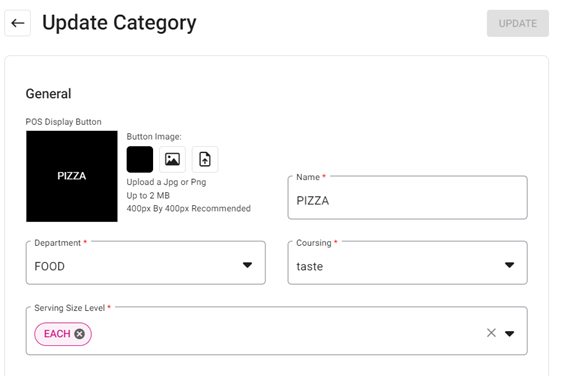
You will be able to create a Category in the Back Office. The Categories created in the Back Office will be shown in the POS according to their availability.
Availability
You can configure Categories to be available during specific Dates and Times.
- Select the applicable Time Period:
- Always
- Days of Week
- Days of Month
- Date Range
- Specific Date
- Date Range with Time
- The respective Category will appear in the POS based on that selected Time Period.
Visibility
Hide in POS
The Hide in POS toggle will be available, and be Disabled by default.
- If Enabled, you will be able to hide this Category in POS
- If Disabled, you will be able to view this Category in POS
Hide in Kiosk
The Hide in Kiosk toggle will be available, and be Disabled by default.
- If Enabled, you will be able to hide this Category in Kiosk
- If Disabled, you will be able to view this Category in Kiosk
Hide in Online Order
The Hide in Online Order toggle will be available, and be Disabled by default.
- If Enabled, you will be able to hide this Category in Online Ordering
- If Disabled, you will be able to view this Category in Online Ordering
Conversational
The Hide in Conversational toggle will be available, and be Disabled by default.
- If Enabled, you will be able to view the conversational view in POS screen
- If Disabled, you will not be able to view the conversational view in POS screen
Enable Age Restriction
The Enable Age Restriction toggle will be available, and be Disabled by default.
- If Enabled, you will be able to restrict this Category for certain age group
- If Disabled, you will be able to allow this Category for any age groups
Changes in POS
Categories created in the Back Office will be shown in the POS according to their availability. You can access the list of available Categories by clicking on the  downward arrow.
When clicking on a specific Category, you can access the list of Menu Items that are available within that Category.
Subcategory
Back Office
Note: To be able to create a Subcategory in the Back Office, you must first have an existing Category.
Navigation: Log into BO and select a Store, then select Products/Items > Subcategory
You will be able to create a Subcategory in the Back Office.
The Subcategories created in the Back Office will be shown in the POS according to their availability.
Availability
You can configure Subcategories to be available during specific Dates and Times.
- Select the applicable Time Period.
- Always
- Days of Week
- Days of Month
- Date Range
- Specific Date
- Date Range with Time
- The respective Subcategory will appear in the POS based on that selected Time Period.
Visibility
Hide in POS
The Hide in POS toggle will be available, and be Disabled by default
- If Enabled, you will be able to hide this Subcategory in POS
- If Disabled, you will be able to view this Subcategory in POS
Conversational
The Hide in Conversational toggle will be available, and be Disabled by default
- If Enabled, you will be able to view the conversational view in POS screen
- If Disabled, you will not be able to view the conversational view in POS screen
Enable Age Restriction
The Enable Age Restriction toggle will be available, and be Disabled by default.
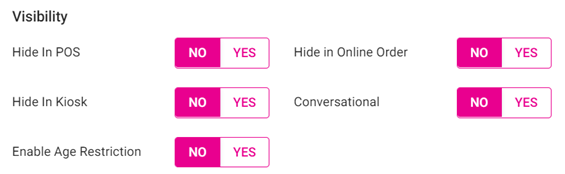
- If Enabled, you will be able to restrict this Subcategory for certain age group
- If Disabled, you will be able to allow this Subcategory for any age groups
Changes in POS
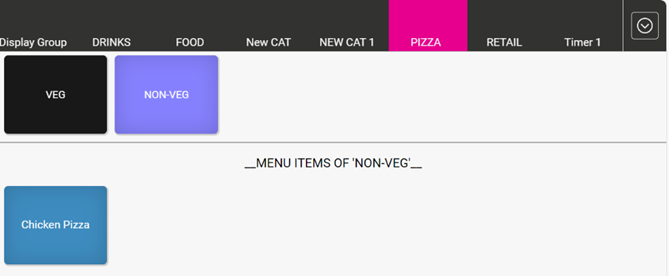
The Subcategories established in the Back Office will appear in the POS under the corresponding Category.
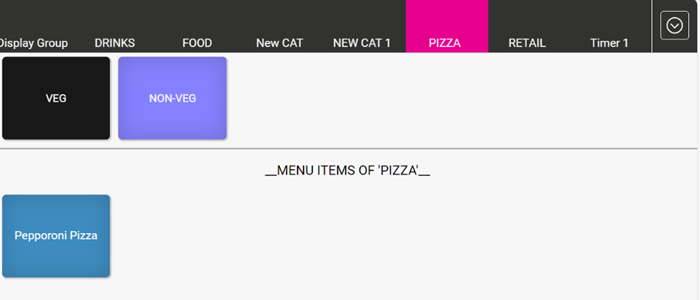
When selecting a Subcategory, you can view the list of Menu Items available within that particular Subcategory.
Related Articles
Back Office: Products/Items - Subcategory
Navigation: Sign into the Back Office. On the left-side, select Products/Items then Subcategory. The Subcategories page appears, which displays the Store's Subcategories in table format. Select a Category from the dropdown then click Apply. The ...Retail Back Office: Products/Items - Subcategory
Navigate: Log into BO for your Store then select Products/Items > Subcategory Create a New Subcategory / Update an Existing Subcategory Create a new Subcategory by clicking + New Subcategory. Or update an existing Subcategory by clicking the ...Retail POS: POS Options
The POS Options (gear) button is located at the upper-left of the POS screen, and when selected offers the following options: Back Office If selected, you will be taken to Back Office Login Page. Sync Back Office When selected, POS will be synced ...POS: Tax
Quantity Based Tax Back Office Navigation: Log into BO and select a Store, then select Product/Items > Taxes When creating a new Tax or editing an existing Tax: For Apply To, you can select Item Tax and define the percentage of the tax based on the ...POS: Exclude Gratuity
Background in Back Office Navigation: Log into BO and select a Store, then select Products/Items > Category The Exclude Gratuity toggle appears under Category and Subcategory in BO Category If enabling the toggle (setting to Yes), the following alert ...