Retail Back Office: Audit Log Reports
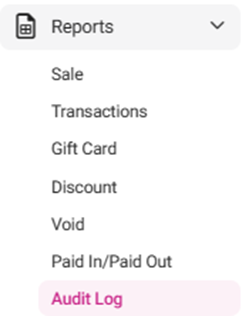
Navigation: Sign into the Back Office and select a Store. On the left-side Navigation Panel, click Reports then Audit Log.
The Audit Log Reporting page displays Employees' Attendance information.
- Filter by the below options:
- Source: Select either BO (Back Office) or POS (Point-Of-Sale).
- If BO was selected: select the Event (the type of action taken).
- If POS was selected, the select from the Filter and Receipt Type dropdowns that appear:
- Filter - Select how to organize the table data (Receipt No, Employee, Action, or All):
- If Receipt No is selected – The adjacent Receipt No field appears. Enter the number.
- If Action is selected – The adjacent Action field appears. Select the type of action.
- Receipt Type: Select Active, Closed, or All (both).
- Select the Time Period, then click Apply. The below table is populated, based on the Source selection:
- If BO was selected as the Source, the below columns appear:
- Actions: The type of action taken.
- Event Date & Time: Exact Date and Time and action occurred, with format based on established settings.
- Employee: The employee’s name.
- Device Name: The device’s name as per BO settings.
- Device Type: The source (BO).
- Log: The log details for the activity and which field the update has been made to (such as menu item, modifier group, user update, etc.). Clicking the value displays a new table describing the update - with columns for Field Name, Old Value, and New Value.
- If POS was selected as the Source, the below columns appear:
- Receipt Number: The number of the receipt on which the log occurred.
- Action: The type of action taken.
- Event date and time: This displays when this action occurs (shows the exact date and time log). Based on the date and time format in application settings this will be displayed.
- Employee: The employee’s name.
- Device Name: The device’s name as per BO settings.
- Device Type: The source (POS).
- Node: The node from where the action was conducted.
- Log: The log details for the activity and which field the update has been made to. Clicking the value displays a new table describing the update - with columns for Field Name, Old Value, and New Value.