Retail Back Office: Revenue Center Reports
Navigation: Log into the Back Office for your Retail Store, then select Reports > Revenue Center
The Revenue Center Reports page is used to
organize all the different transactions at the Retail Store based on the POS Node
(which are defined in Revenue Center settings) and Shift (set on the
Store Hours setting page).
- Select the Revenue Center(s) and Time Period.
- Revenue Center: Select one or more Revenue Centers from the dropdown (or Select All). Each selected Revenue Center will appear as its own table.
- Click Apply. The selected Revenue Center option(s) will appear as table(s).
Number (No) of Receipts
Displays the
total number of receipts- broken down by Item Type - during the selected Time
Period.

- Item Type: If the Shift is set and a Sale is made during that time interval, this column shows the shift as the Item Type.
- If there is no shift, it will show Other(s) as Item Type.
- Grand Total: This shows the total number of guests for the specific Item Type.
- Total: The bottom row, the Total number of guests from all Item Types.
Net Sales by Category
Displays
the total net sales - broken down by Category - during the selected Time
Period.
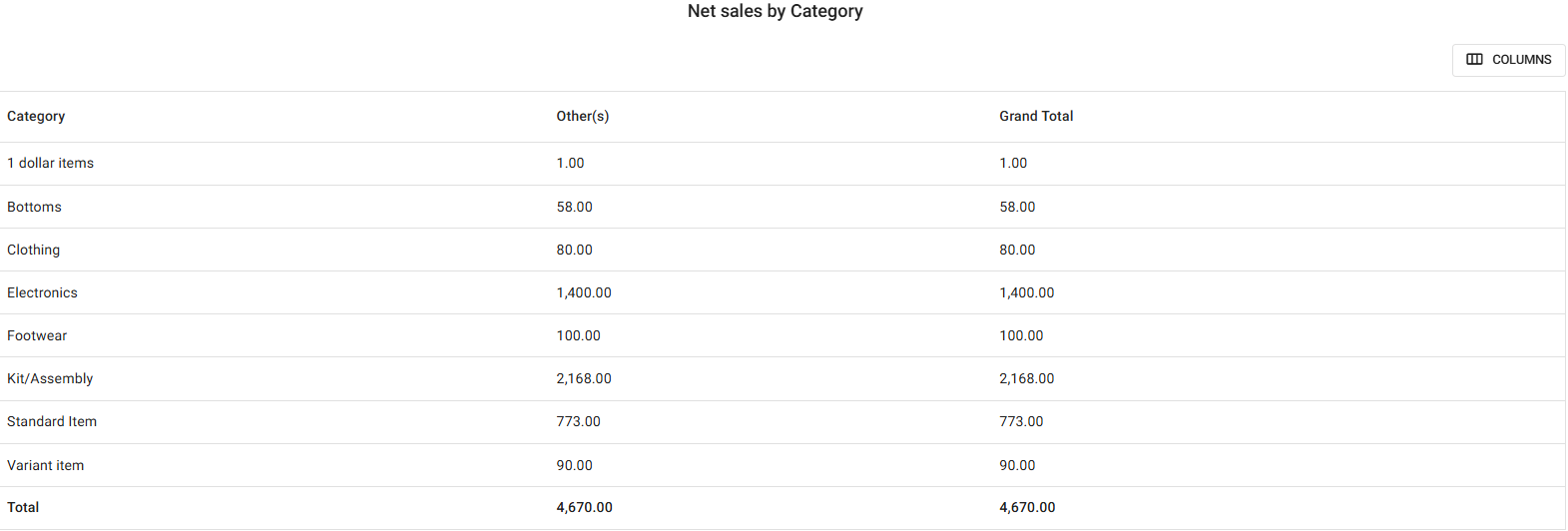
- Category: The name of the Category the sale was made from in the Revenue Center.
- If there is no shift, it will show Other(s) as Item Type.
- Grand Total: The total amount of net sale for the specific Category.
- Total: The bottom row, the Total amount of sales from all Item Types.
Net
Sales by Shift
Displays
the total net sales - broken down by Item Type (shift) - during the
selected Time Period.

- Item Type: If the Shift is set and a Sale is made during that time interval, this column shows the shift as the Item Type.
- If there is no shift, it will show Other(s) as Item Type.
- Grand Total: This shows the total net sale amount for the specific category.
- Total: The bottom row, the Total amount of Net Sales from all Item Types.
Net
Sales by Revenue Center
The Net Sales of each Revenue Center and Category.
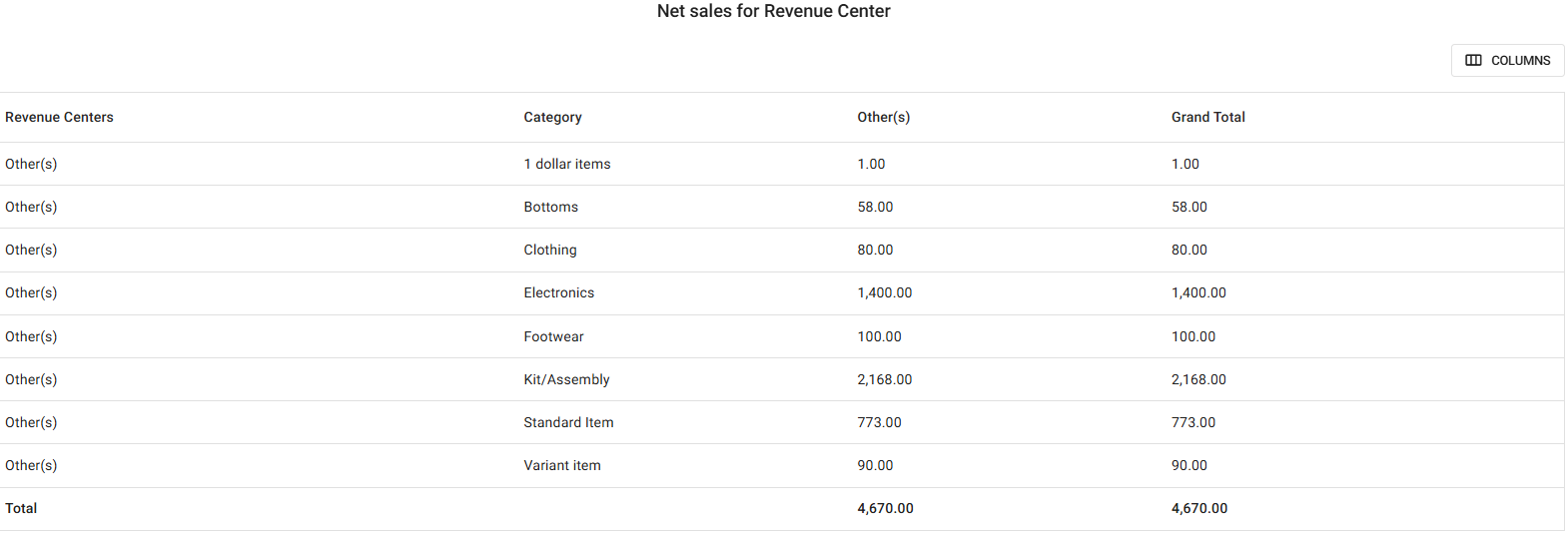
- Revenue Centers: The name of the Revenue Center.
- Category: The name of the category sale in the revenue center was made from.
- Grand Total: The total net sale amount for the specific Category.
- Total: The bottom row, the Total amount of Net Sales from all Revenue Centers.