Retail POS: Operation - Till Management (Overview)
Introduction to Till
Till is the money trays that fit into the Cash Drawers. They help Owners and Managers to keep track of the cash that passes through their business daily.
Some of the advantages of having an automated Till Management system are:
- Provides complete control over cash management at Tills/Counters.
- Ensures secure and efficient management of Cash.
- Allows reliable tracking of Store activities handled at the Tills.
- Improves accuracy and efficiency of operations.
When you are ordering in the Order screen, you will not be allowed to navigate to the Till Management screen without finishing the current order. Instead, an alert message “Close your sale” will be displayed.
Till configuration is device oriented, in that configuration is made per device.
Types of Tills
Two types of Tills are available:
- User Till – This is user-specific. When a logged-in employee (X) has created a Till of type User, then creates a Sale and payment is made via Cash, the Till Balance will be incremented for this respective Employee alone.
- Global Till – When a device is used by multiple Employees and when an Employee has created a Till of type Global, any Employee (with different Login IDs) who created a Sale with payment made via Cash, the Till Balance will be incremented for who was using this particular device.
- Global till can be created in Back Office as well as in the POS.
- You can configure the Global Till in the Store Settings of the Back Office (Store > Settings screen) by enabling the Open Auto Global Till option. When enabled, provide the Enter Opening Balance value.
- You can enable Global Till in the Open Till screen in the POS.
Accessing Till Management in POS
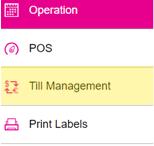
Navigation: Select Operation then Till Management
The Till Management screen that appears consists of the following tabs, with a separate Knowledge Base Article for each: