Retail POS: Operation - Upgrade to New Version

Retail POS: Operation - Upgrade to New Version


Before upgrading, note your current Build Version number.

In POS, select Operation then Upgrade to New Version.
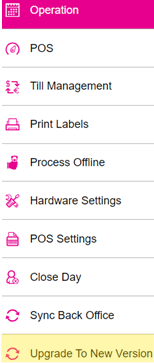
The Retail POS will be updated to the new build version. Note the upgraded Build Version number to confirm the upgrade.
    • Related Articles

    • Build Version 2.1.21 (1.1) - Release Notes

      Release Date: 12-16-2019 Release Version: 2.1.21 (1.1) Enhancement: · Auto Batch - The option to define the time to perform Auto batch will be provided in the BO Settings - The Auto batch menu will be listed only for the stores which are configured ...
    • Build Version 2.1.24 (1.1) - Release Notes

      Release Date: 07/09/2020 Release Version: 2.1.24 (1.1)   Enhancements: ·         Auto Update for POS -        Auto update will allow the system to prompt for each new software update automatically -        A Notification for update to latest version ...
    • Retail POS: Operation - Support

      In POS, select Operation then Support. The Support Operation screen appears. It is broken down by the Download and Status tabs. Download Tab The latest version of the POS is available for download via the Download button. If you click the Download ...
    • Retail POS: Operation - Batch

      In POS, select Operation then Batch. User Dropdown The User dropdown contains a list of users (employees), allowing you to choose a specific User from the list. Once a User is selected, you can view a list of transactions carried out by that selected ...
    • POS: Operation - POS Settings

      POS Settings Navigation: Log into POS, then select Operation > POS Settings Note: Only Employees with the proper Role and Permission settings have access to POS Settings. Till Settings This section is used to define the behavior of Till Management. ...