Retail Back Office: Enterprise - Sync Inventory
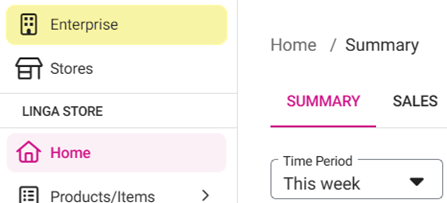
Navigation: Sign into the Back Office. On the left-side Navigation Panel, click Enterprise.
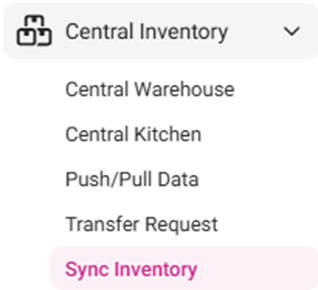
On the Enterprise page, click Central Inventory then select Sync
Inventory.
The Sync Inventory page appears, which highlights the benefits that come with a fully synced inventory:
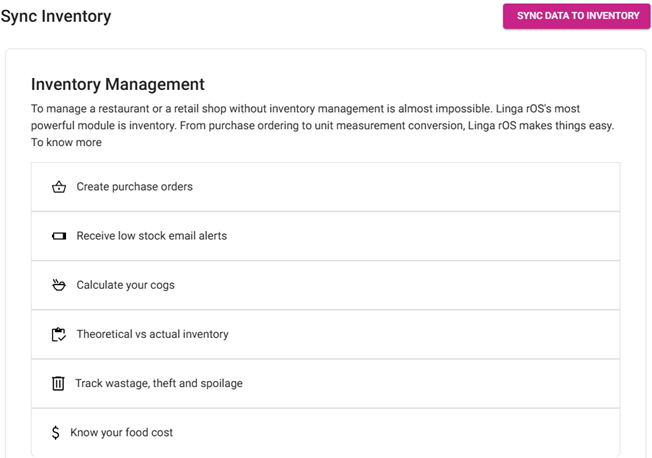
Create purchase orders: A PO can be created under the Purchase Order
screen.
Receive low stock email alerts: The low stock alert email will be sent to the
registered email.
Calculate your COGS:
The Cost Of Goods Sold (COGS) will be calculated and will be
reflected in Inventory reports.
Track wastage, theft & spoilage: The user can view details about the wastage
inventory items in wastage Reports.
Know
your food cost: The price value of the food will be displayed
along with Menu Items.
- Click Sync Data To Inventory.
- The ‘Stay
Calm, Authenticating…’ banner appears at the upper-right while syncing
occurs.

- Once complete the ‘Inventory synced successfully’ confirmation banner appears.

Related Articles
Back Office: Enterprise - Sync Inventory
Sign into the Back Office. On the left-side Navigation Panel, click Enterprise. On the Enterprise page, click Central Inventory then select Sync Inventory. The Sync Inventory page appears, which highlights the benefits that come with a fully synced ...
Retail Back Office: Inventory - Sync Inventory
Navigation: Sign into the Back Office for your Retail Store, then select Inventory > Sync Inventory. The Sync Inventory page appears, highlighting the benefits available to a fully synced inventory: Create purchase orders, Receive low stock email ...
Build Version 2.1.22 - Inventory Release
Back office: Inventory Enhancements: Inventory Phase 2: Inventory subcategory is included as like in Products/Items. Subcategory filter option is included in Inventory reports. Default filter option “Adjust Inventory” is added in Adjust Inventory ...
Retail Back Office: Enterprise Settings - Central Inventory
Navigation: Sign into the Back Office. On the left-side Navigation Panel, click Enterprise. Then click Settings. On the Settings page, under Central Inventory, select Inventory Costing. The Inventory Costing page has options to select stores for ...
Back Office: Inventory - Sync Inventory
Sign into the Back Office and select a Store. On the left-side Navigation Panel, click Inventory then Sync Inventory. The Sync Inventory page appears, highlighting the benefits available to a fully synced inventory: Create purchase orders, Receive ...