Retail Back Office: Feedback App Addon Settings
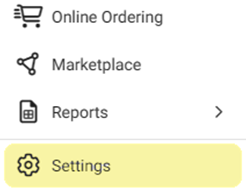
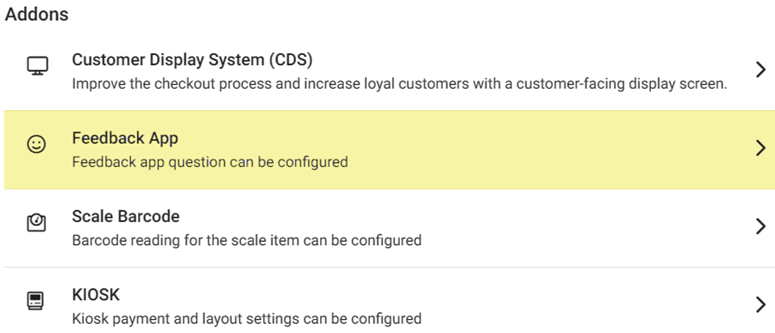
Navigation: Sign into the Back Office and select a Store. On the left-side Navigation Panel, click Settings. On the Settings page, under Addons click Feedback App.
The Feedback App page contains the option to add up to 2 Questions with up to 4 Answers each (including corresponding emojis to indicate sentiment) for every customer to provide feedback about their experience at your Store.
- Enable a Question (slide toggle to YES) to include it as part of Feedback.
- Note: Question 2 will not appear unless Question 1 is Enabled.
- Question 1
- Question Message – Enter the question in the field, which cannot exceed 160 characters.
- Answers – 4 options appearing below the Question Message. Select an answer’s corresponding checkbox to enable it. An answer will be based on an emoji to reflect sentiment such as Love it, Very Good, It can be Better, etc. With an emoji selected, type a message in the Answer field elaborating on the emoji (maximum of 60 characters). The Answer will be displayed in the Feedback
app. Question 2
Reminder: Question 1 must be Enabled for Question 2 to appear.
Secondary Question Triggers – Select the corresponding checkbox of an answer (Love It, Very Good, etc.) you would like to use as a trigger.
Capture User Information – Select the corresponding checkboxes of the information you’d like to capture from the customer.
Question Message – Enter the question in the field, which cannot exceed 160 characters.
Answers – Enter an Answer option in up to 4 fields (maximum of 60 characters).
- Click Save at the upper-right to save the updates. The confirmation banner appears at the upper-right.
- Click the Left Arrow (<-) next to the Feedback App header to return to the Settings screen without saving changes.