Retail Back Office: Gift Card Reports
Navigation: Log into the Back Office for your Store, then select Reports > Gift Card.
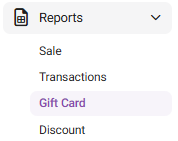
The Gift Card Reports page displays a history of the Store's Gift Card-related transactions, organized by tabs for Gift Card and Give X.
Gift Card
Give X
Gift Card
Displays
information about transactions involving Gift Cards that occurred at your store.
- Filter by the following fields and Time Period:
- Card Number – Enter a Card Number (no more than 25 characters, established as an existing card under Products/Items > Gift Card). If there were any previously searched Gift Card numbers, they will appear when the field is clicked.
- Activity Type – Select from the dropdown:
- Adjustment – Adjustment transactions involving a Gift Card.
- Redeemed – Redemption transactions involving a Gift Card.
- Recharges – Recharge transactions involving a Gift Card.
- Sold – Sales transactions involving a Gift Card.
- Refund – Refund transactions involving a Gift Card.
- Void – Void transactions involving a Gift Card.
- Employee – Select an Employee from the dropdown, or All for all employees (who were given access). You can Search to identify an employee more quickly.
- Sold In – Select the source of any sold, redeemed, refunded, voided, adjustment, or recharged Gift Cards from the dropdown:
- All – Back Office, Online Ordering and POS gift cards
- Back Office – Gift Card transactions originating from Back Office
- Online Ordering – Gift Cards transactions originating from Online Ordering
- POS – Gift Card transactions originating from POS
- Click Apply. The table with the following columns is populated:
- Card Number – The respective Gift Card (full number).
- Business Date – The Business Date of the Transaction (MM/DD/YYYY format).
- Transaction Date – The Date and Time of the Transaction (MM/DD/YYYY HH:MM:SS AM/PM format).
- Employee – The username of the Employee who conducted the Transaction.
- Sale Number – The Sale Number (the day’s NodeNumber-ReceiptNumber format).
- Node – The POS Node from which the transaction was conducted.
- Activity Type – The type of Transaction (based on the Activity Type selection).
- Sold In – The source of the Transaction (based on the Sold In selection).
- Amount – The amount of the Transaction (number with two-decimal point format based on Currency selection in Store settings).
- Balance – The remaining Balance on the Gift Card (number with two-decimal point format based on Currency selection in Store settings).
Give X
Displays information about transactions involving Give X cards that occurred at your store.
- Filter by the following fields and Time Period:
- GiveX Number – Enter the GiveX Number (you can enter all 21 digits, but the field will show a maximum of 12 digits at a time). Since it’s a virtual card, a new one can be added from tablet, and amounts can be added from POS (from the Receipt option).
- Employee – Select an Employee from the dropdown, or All for all employees (who were given access). You can Search to identify an employee more quickly.
- Click Apply. A table with the below columns will be populated:
- Give X Number – The entire Give X Card Number.
- Date – The Date and Time of the Transaction (MM/DD/YYYY HH:MM:SS AM/PM format).
- Receipt Number – The Node and Receipt Numbers (Node-ReceiptNumber format).
- Employee – The username of the Employee who conducted the transaction.
- Node – The POS Node from which the transaction was conducted.
- Activity Type – The type of Transaction (based on the Activity Type selection).
- Amount – The amount of the Transaction (number with two-decimal point format based on Currency selection in Store settings).