Retail Back Office: User Management - Disabling a User from Sign In
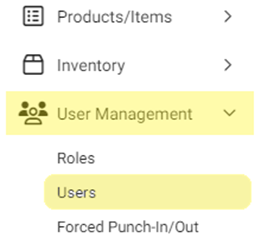
Navigation: Sign into the Back Office. for your Retail Store, then select User Management > Users.
On
the Users screen: identify the User to be disabled from signing in, then under the Actions column click the corresponding three dots ••• and select Disable Sign In.

On
the User Disabling pop-up that appears: click Disable Sign-In to confirm
disabling. If you wish to close the pop-up without disabling, click X Close / Cancel.

If
confirmed, you’re returned to the main Users screen and the banner Sign In
Disabled Successfully appears at the upper-right.

Related Articles
Retail Back Office: User Management - Roles
Navigation: Sign into the Back Office for your Retail Store, then select User Management > Roles The Roles page appears, which displays a table of the currently existing Roles within this Retail Store, with the following columns: Create a New Role or ...
Back Office: User Management - Disabling a User from Sign In
Sign into the Back Office. On the left-side Navigation Panel, click User Management then Users. On the Users screen, under the Actions column click the ••• for a User then click Disable Sign In. The User Disabling pop-up appears. On the User ...
Retail Back Office: User Management - Enabling a User to Sign In
Navigation: Sign into the Back Office for your Retail Store, then select User Management > Users On the Users screen: identify the User to have Sign-In enabled, then under the Actions column click the corresponding three dots ••• and click Enable ...
Retail Back Office: User Management - Editing an Existing User
Navigation: Sign into the Back Office. for your Retail Store, then select User Management > Users. On the Users screen: identify the User to be updated and under the Actions column click the corresponding three dots ••• then select Edit. When adding ...
Retail Back Office: User Management - Resetting a User's Password
Navigation: Sign into the Back Office. for your Retail Store, then select User Management > Users. On the Users screen, identify the User whose password needs resetting. Then, under the Actions column click the corresponding three dots (•••) and ...