Back Office: User Management - Enabling a User to Sign In

Back Office: User Management - Enabling a User to Sign In

  1. Sign into the Back Office.

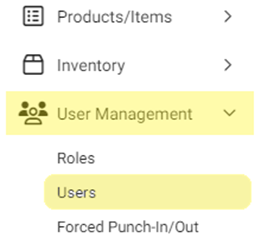
  2. On the left-side Navigation Panel, click User Management then Users.

  3. On the Users screen, under the Actions column click the ••• for a User then click Enable Sign In. The Set Password pop-up appears.


  4. On the Set Password pop-up, enter the New Password then re-enter the same Password to Confirm. Green circled checkmark means a password requirement is met. When the new Password is confirmed, click Authenticate.


  5. You are returned to the main Users screen and the banner Sign In Enabled Successfully appears at the top-right of the page.


    • Related Articles

    • Back Office: Employee Report

      Sign into the Back Office and select a Store. On the left-side Navigation Panel, click Reports then Employee. The Employee report page displays a comprehensive set of data on your staff, with tabs for: Attendance Role Based Payroll Labor Labor By Job ...
    • Back Office: User Management - Disabling a User from Sign In

      Sign into the Back Office. On the left-side Navigation Panel, click User Management then Users. On the Users screen, under the Actions column click the ••• for a User then click Disable Sign In. The User Disabling pop-up appears. On the User ...
    • Back Office: User Management - Roles

      Sign into the Back Office and select a Store. On the left-side Navigation Panel, click User Management then select Roles. On the Roles page, click + New Role at the top-right. The New Role pane appears. You can update a Role by clicking the ...
    • Back Office: User Management - Editing an Existing User

      Sign into the Back Office. On the left-side Navigation Panel, click User Management then Users. On the Users screen, under the Actions column click the ••• for a User then click Edit. When adding or editing a User, the following fields will be ...
    • Back Office: User Management - Tip Adjustment

      Sign into the Back Office. On the left–side Navigation Panel, click User Management then Tip Adjustment. The Tip Adjustment page appears. Select the Billing Date and Employee Type, then click Apply. Billing Date Filter – Select the Billing Date ...