POS: Initial Screen
Back Office Settings
When creating a new User, for the Initial Screen dropdown select POS Screen. For more information: see the Initial Screen field in the User Settings Knowledge Article.
Impact in POS
When attempting to log into the POS: the system will direct them to the screen specified in the Back Office, according to the selected Initial Screen for that user.
POS Screen
Example: If POS Screen is selected - upon logging into the POS, the system will direct the user to the POS Order screen.
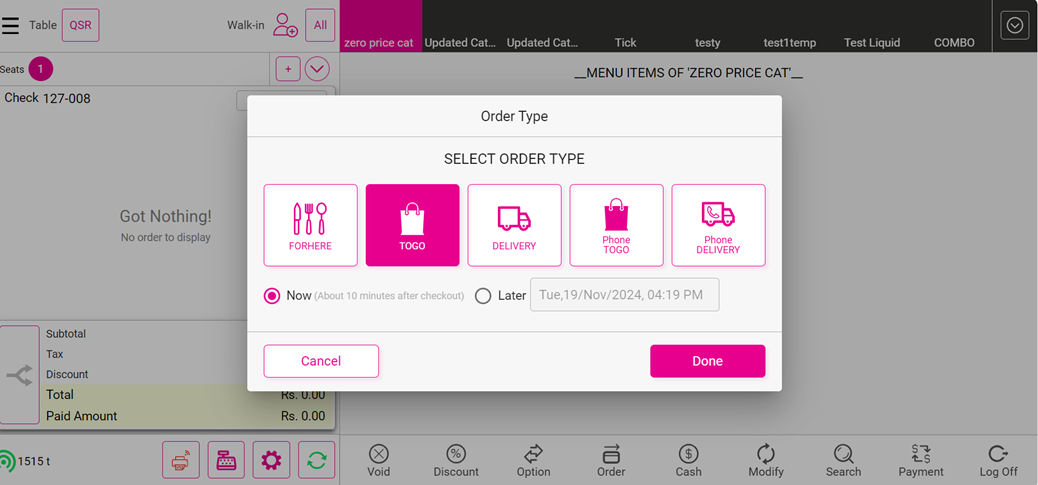
Table Screen
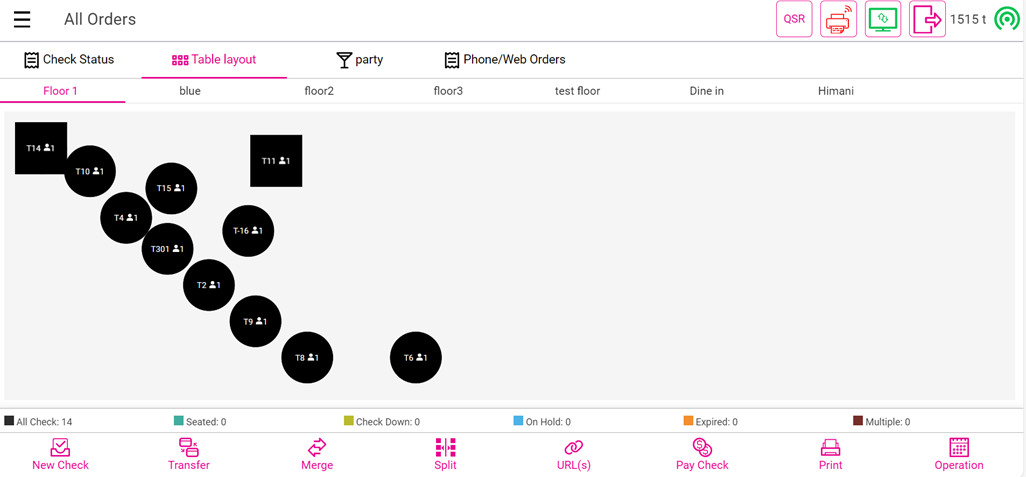
Example: If Table Screen is selected - upon logging into the POS, the system will direct the user to the Table Screen.
Bar Screen
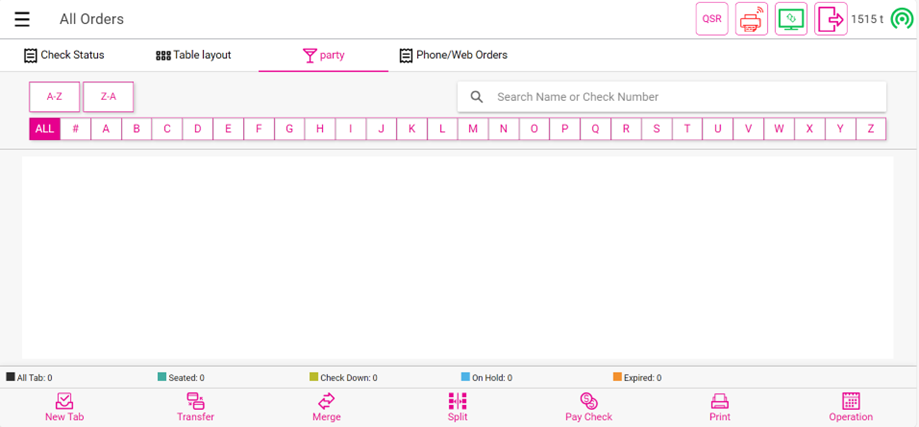
Example: If Bar Screen is selected - upon logging into the POS, the system will direct the user to the Bar Screen.
Related Articles
POS: Default Screen
When an Employee logs in, the initial screen appears. This is configured in Back Office [User Management > Users] On the Users screen: Create a new User by clicking + NEW USER at the upper-right, or click the corresponding three dots ( ) under the ...POS: Order Screen
If the POS Initial screen in the Back Office is configured as POS Screen, then after logging into the application you will be taken to the Order screen. If the Order Type is enabled on the POS Settings screen, then the Order Type pop-up appears with ...Retail POS: Operation - POS Settings
Navigation: Log into POS, then select Operation > POS Settings Note: Only Employees with the proper Role and Permission settings have access to POS Settings. Till Settings This section is used to define the behavior of Till Management. Back Office ...POS: Payments - Offline Mode
POS Navigation: Log into POS, then select POS Operations > POS Settings On the POS Settings page: the Offline Mode toggle appears and will be disabled by default. It is for switching the device from Online to Offline. If enabled, then the system ...POS: Table Layout - Merge Checks
The Merge feature allows you to merge multiple Checks into one Check. Merging Checks in POS After clicking the Merge option: The Merge Checks popup will appear on the right-hand side of the screen. In case the pop-up is covering a Table you need to ...