POS: Offline Mode
POS Settings
Navigation: Log into POS, then select POS Operations > POS Settings
Offline Mode Toggle
- On the POS Settings page: the Offline Mode toggle appears and will be disabled by default. It is for switching the device from Online to Offline.
- If enabled, this toggle then system works in Offline mode. The payments, employee clock in, etc. will be stored locally.
A pop-up with the message 'Your device is offline. Next network connectivity check will be done after 15 mins' appears at the bottom. - If disabled, then the system works in Online mode.
- When the system is reconnected to the internet, the actions stored locally during offline mode will be posted to the server.
Allow Offline Payment Toggle
The Allow Offline Payment toggle will be Enabled by default.
- If the toggle is Enabled then you will be able to take payment in Offline Mode.
- If the toggle is Disabled, you will not be able to take CC payment in Offline Mode or when the server is down.
Making a Payment in Offline Mode
- If the device is offline but the Card Reader is connected, then the 'Card reader not connected' pop-up appears.
- If the network is unavailable but the Allow Offline Payment toggle is enabled: making a Sale then processing the Payment will automatically enable the Offline Mode toggle.
- Additionally, if the server is down during a payment transaction - or when there is no internet connection - the Offline Mode toggle will be enabled by default.
Batch
Batch Screen
- When the offline mode toggle is enabled - the Batch screen will be empty and not show offline checks. The process offline toggle will be greyed out and the batch cannot be submitted. A pop-up with the message 'Application is in offline mode' appears on the Batch screen.
- When both the offline mode toggle is disabled and attempting to make a Sale with processing payment, then the Check is shown as light red color.
- The dark red highlight indicates already processed offline clicked checks which are failed/invalid. This transaction will not process more than once.
- When the dark red color check is clicked, a pop-up with the message 'Error in [CheckNumber], Please contact support to remove them' appears.
- When the offline mode toggle is disabled and allow offline payment is enabled, then the failed transaction shown in red color and error check shown in dark red color.
Batch Device
When network is available but the offline mode toggle is disabled, then a pop-up with the message 'offline payments are available. Do you want to process it?' With yes or no option.
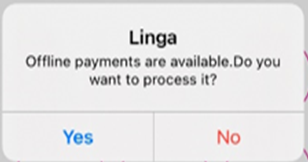
- If Yes is selected, the loader spinning animation runs while it processes offline.
- If No is selected, again after 15 mins this pop up appear.
The Batch device selected from Settings will have the provision to perform the above functionality.- When the offline mode toggle is disabled but the network is available, then offline transactions will be available but only the bottom notification will appear.
- If there is at least one offline transaction, a pop-up with the message 'You have [amount] offline transactions in Batch. Make sure to authorize offline transactions in batch screen' appears (on all screens, similar to Offline message).
- If there are no offline transactions, then no pop-up appears.
- This alert message will appear only for the POS which is selected as a Batch Setting Device in BO.
- When Offline mode is disabled and internet connection is available in the POS, we need to show the alert.
- The Offline count values will be updated in POS every 15 minutes.
- Once the Checks have been processed, the alert message will be removed from iPad. The alert will also be removed when the offline mode toggle is enabled.
- The error/invalid offline Checks will also be added along with the valid offline transactions in the alert messages. (The counts in alert/email/batch screen will be uniform).
Offline Mode Screens in POS
- When the Offline Mode toggle is enabled: the following functions may not work as expected, with a pop-up displaying the message 'Application is in offline mode' appears:
- Submit Batch, Process Offline, Till, Reports, Audit, Open Cash Drawer, Pay in, pay out, 86 list, Refund, and Batch/Tip Adjustment
- Refund will not apply when the system is in offline mode.
- Membership cannot be created. When clicking Save, the 'application is in offline mode' pop-up appears.
- While using Gift Card for payment, the application is in offline mode' pop-up appears.
Hardware Settings
- When the network is available but the offline mode toggle is enabled, the IP Address printers will continue to work as-usual.
- All the printers are connected to local network through intranet. When this is in Offline mode, then you will be able to access all printers such as kitchen printers, receipt printers, KDS etc. The following will function and locally connected.
Back Office Impacts
- Check the device's online or offline status every 15 minutes. Upon detecting an online connection, all offline data will be transferred to the Back Office.
Special Scenario
- When the offline mode toggle is disabled: the list of offline checks will appear, with the process offline toggle enabled and the Submit Batch option will be available.
- Upon clicking the offline checks, a pop-up with the message 'User cannot apply tip for offline payment' appears. The Tip cannot be adjusted for offline checks before clicking process offline.
Clock In when Offline Mode is Enabled
When the offline mode toggle is enabled: a user can clock in, but the data is stored locally and does not immediately reflect in the Back Office (BO).
Notes: When the system is in offline mode, the BO to POS connection will not function (sync will not be available). The POS to redis server will also stop. So, the checks made from one POS node will not be reflected in other nodes.
- Even when a Sale is closed, it will not reflect in BO. Reports will not be shown.
- When the system is in Offline mode, then Close day will not occur. The Auto Batch process will be applicable and when the system is in Offline mode.
- When the offline mode toggle is enabled, the local network connects all devices, (Printers) and KDS.
- When attempting a payment with server not reachable, the offline mode toggle is automatically enabled to facilitate the transaction.
- Till, Report, and audit will not work - except Cash Drawer since it's connected via IP.
Limitations in POS while the System is in Offline Mode
When the system is in Offline mode:
- The Back Office to POS connection won’t function (sync won’t be available), and the POS to Redis Server will also stop. Any Checks from a POS Node will not be reflected in other Nodes.
- After closing a sale in Offline mode, it will not reflect in Back Office Reports.
- Close Days will not occur. However, the Auto Batch process will still apply for those transactions which are posted to backoffice
- Till, Report, and Audit won’t work.
- Refund will not apply.
- Memberships, Customers and House account can’t be created.
Error Transaction Alert Notification
While performing Auto Close the day: if there are any error transactions, then you will be notified via the account's registered Email Address (under Notification Settings).
Special Notes
- When the network is available and if Printers are connected with Intranet and the Offline Mode toggle is enabled, the IP address printers (Kitchen printers, Receipt printers) will continue to work.
- Cash Drawer will continue to function since it’s connected on IP(through Intranet).
- When the Offline Mode toggle is enabled, application should allow to perform Clock-in/out or Break in/out and it will stored locally. Once an internet connection is re-established, then it will be posted to Back Office.
- The system will check the device's online or offline status every 15 minutes. Once the connection is restored, POS will transfer all offline data to the back office.
- Recommendation: When in Offline Mode, do not accept Debit Card payment from the customer, as the transaction is more likely to be Declined (due to insufficient funds or bank declines).