Shogo Integration
Subscribe and Configure
in Back Office
Page
Navigation: Log
into Back Office. On the left-side pane: select Home then Integration
Hub.
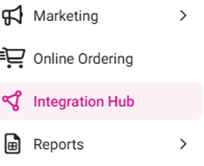
- On
the Integration Hub page, select Browse
and Subscribe Integrations.
- Under the Inventory Management section:
for Shogo select Add.
- After selecting the Terms and Conditions box at the bottom-left, click Confirm at the upper-right.
- On
the Current Integrations page: navigate to the row with Shogo,
then under the right-side Actions column select the Settings (gear) icon. The ‘No
configuration required’ pop-up appears.
Connecting Linga to Shogo
- Log in to your Shogo account.
- Navigate to Settings, then Stores.
- Click Add New Store on the top-right corner (even if you don’t have a new Store to add).
- Choose LINGA from the POS list.
- Enter the Username and Password that you use to log into the LINGA Back Office.
- Enter your API Key then click Connect.
- After you connect, Shogo will finalize the connection to Linga and send you a Next Steps email as confirmation that the connection has been established.
Notes
- Shogo will use your Linga Username
and Password to connect the Shogo app to Linga for initial setup: obtaining
details from Linga and setting up your locations in Shogo.
- If you add another location
after your initial setup, you will need to re-enter your Linga Username and
Password so Shogo can obtain your location details from Linga.
- Shogo does not store your
Linga Username and
Password in their system. The information is only used to
connect to your POS and obtain location information.
Guidelines After Integration
Once Shogo is enabled in the Integration Hub,
follow the steps below to integrate:
- Retrieve the API Key
from the Integration Hub, then provide the Store ID to Shogo.
- For the Store ID you must contact the Support team.
Enterprise
Store
Navigation: Log into Back Office, then
select Integration Hub > Developer API Key
Pro Store
Navigation: Log into Back Office, then
select Integration Hub > Developer API Key